 FlowShow
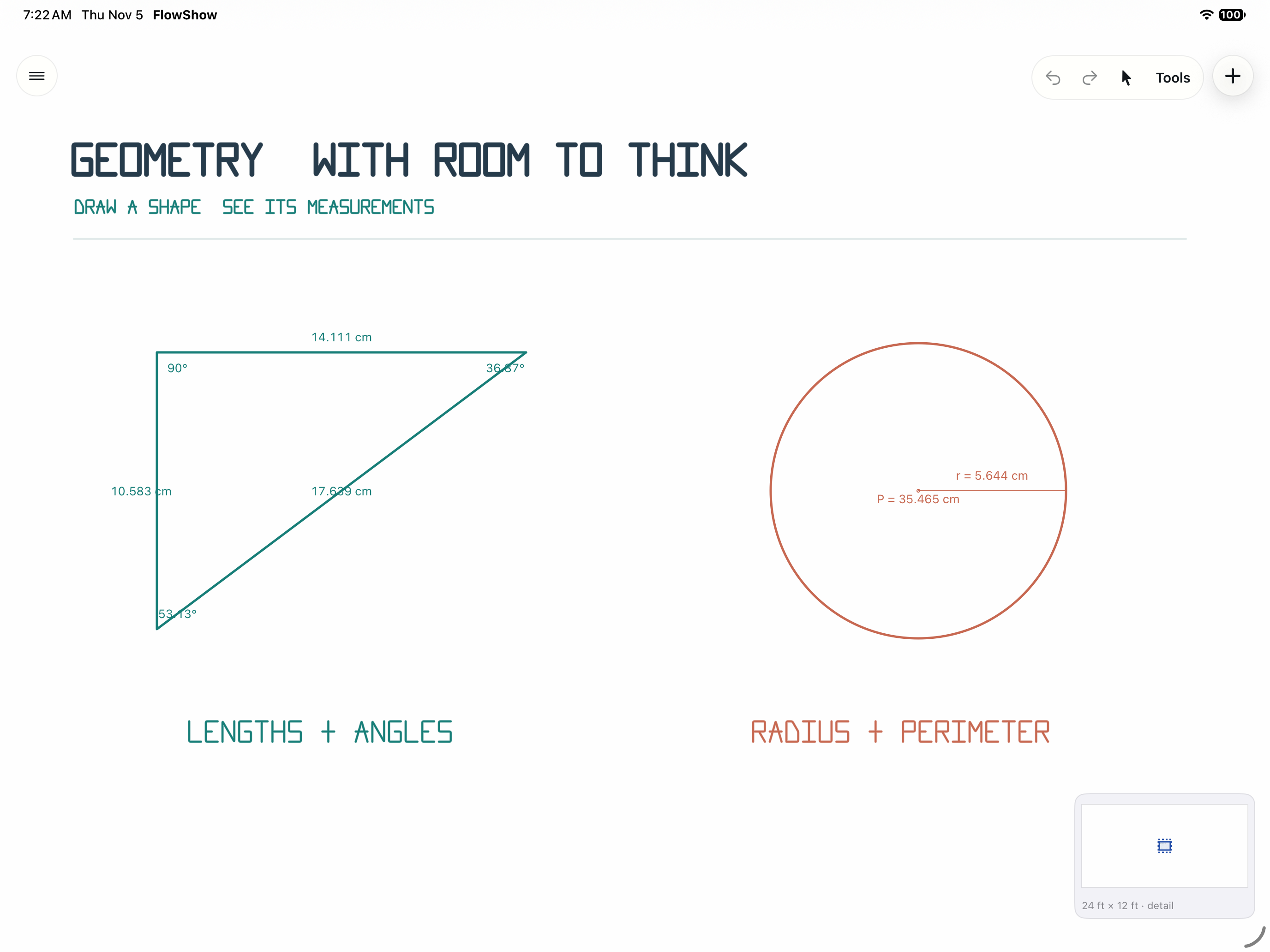
A rough sketch and a measured drawing do different jobs. FlowShow lets you keep both on the same board: Apple Pencil ink for the thought, editable geometry for the dimensions. Use it to explain a shape, compare proportions or work through a geometry problem without leaving the surrounding notes behind.
Start with a shape you can change
Insert a line, arrow, circle or polygon when the geometry needs to remain adjustable. Polylines, curves and circular arcs are also available. Select an object to work with its numerical position, dimensions and angle, then set its stroke, fill or pattern.
A handwritten rectangle is still ink. An inserted rectangle is an object whose dimensions you can revise. That distinction matters when the drawing needs to stay consistent after a change: use the Pencil for annotations and the object controls for the shape itself.
Put the measurements on the drawing
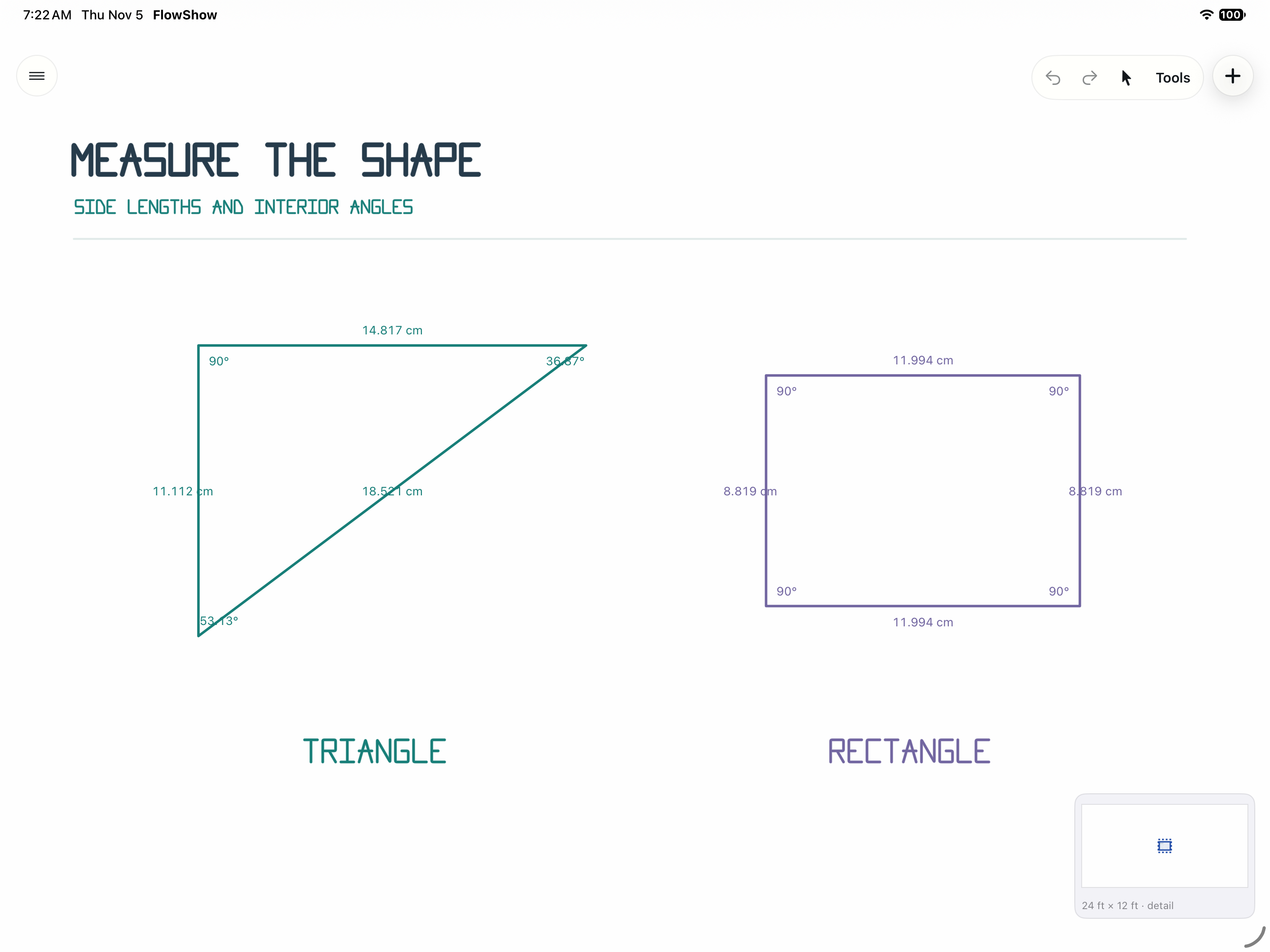
Long-press a supported shape and choose Display measurements. Polygons show side lengths and interior angles; supported lines and curves show length. A circle can display its radius and perimeter, with a center marker and radius segment drawn inside it.
The labels are derived from the current geometry and document calibration. Set the units before treating a number as a physical dimension. Zooming the board changes your view, not the object's dimensions. Labels can be omitted when a shape is too small to read on screen; zoom closer before assuming they have disappeared from the project.
Build a measured drawing to practice the difference between an object's geometry, its labels and your handwritten explanation.
Align deliberately
Snapping can help align a grid point, center, endpoint, control point or line intersection. Angle snapping supports deliberate line directions. Supported relationships include fixed length or angle, parallel and perpendicular lines, equal lengths, coincident starts and circle tangency.
Use one relationship at a time and check the result. These are bounded relationships, not a general-purpose CAD constraint solver. A simple diagram is easier to inspect when its important alignment is explicit and its incidental details are left unconstrained.
Measure an angle with the protractor
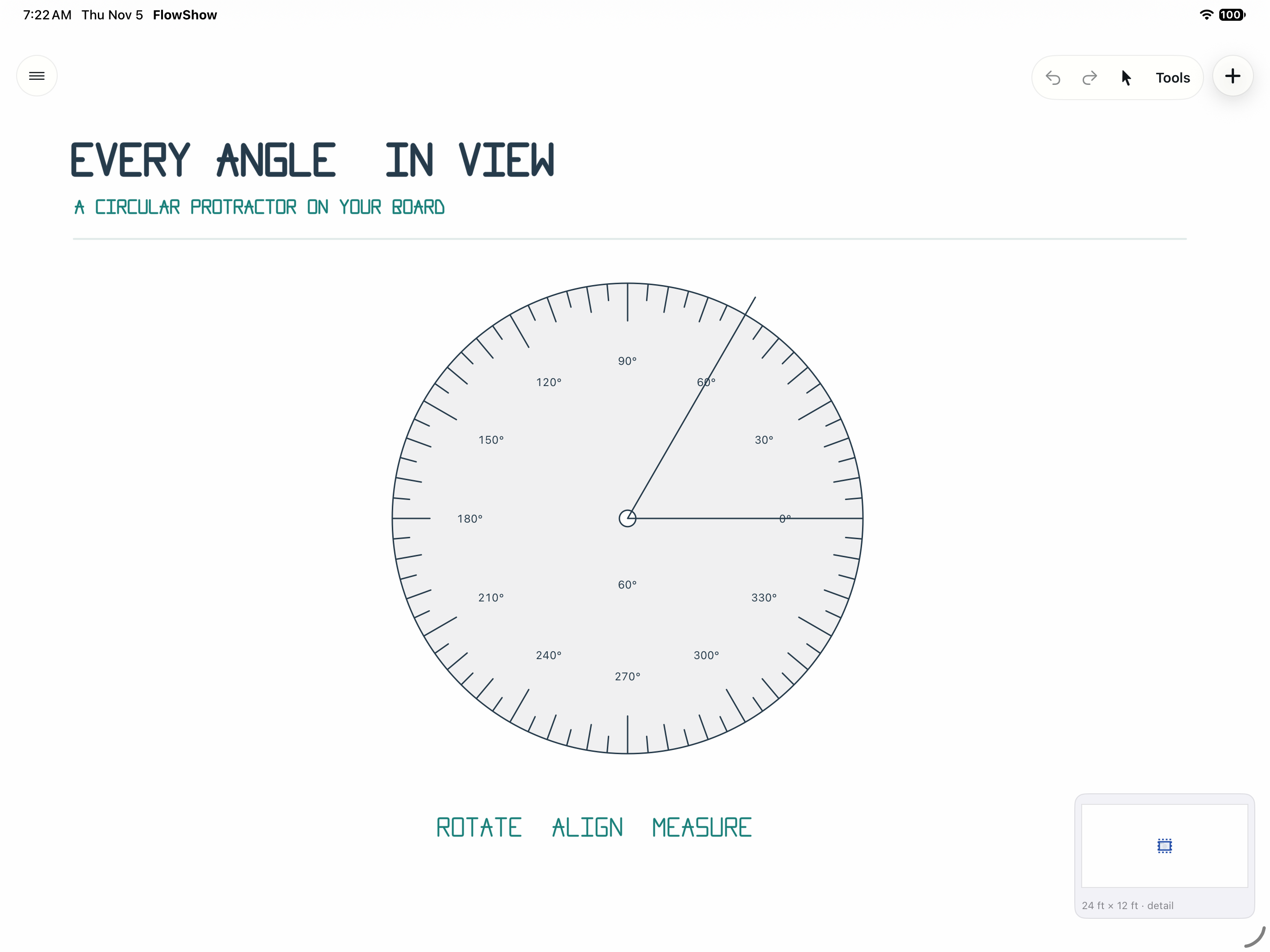
The circular protractor shows the complete 360-degree rim with ticks, labels and a movable arm. Its face is translucent so you can see the geometry underneath. Position it at the vertex, rotate it into alignment and move the arm to inspect the angle.
Use the protractor to explain an angle visually, or use a supported shape's measurement labels when you need the angle attached to that shape. The two tools complement each other; moving the protractor is not the same as changing a polygon's geometry.
Add a coordinate plane
Add → X–Y Plane inserts a square plane with default ranges from −10 to 10 and an interval of 1. Edit the bounds, intervals, labels, grid and color for the problem. Its frame remains square even when the horizontal and vertical ranges differ.
Use the plane as a drawing and explanation surface. For calculated function curves, open the graphing calculator. A hand-drawn curve on a coordinate plane is not an evaluated function, and a graph placed on the board is a snapshot of the calculator's output.
Keep the geometry and the explanation
Group related objects when rearranging a diagram. Keep handwritten reasoning beside the drawing, then export an editable JSON board for future changes. Use PNG or SVG for the visual composition. Measurements and protractor geometry share the app's viewport and export rendering, but the visual export is not the editable project.
The precision guide covers units and relationships. The measurements guide covers label behavior and supported shapes.