 FlowShow
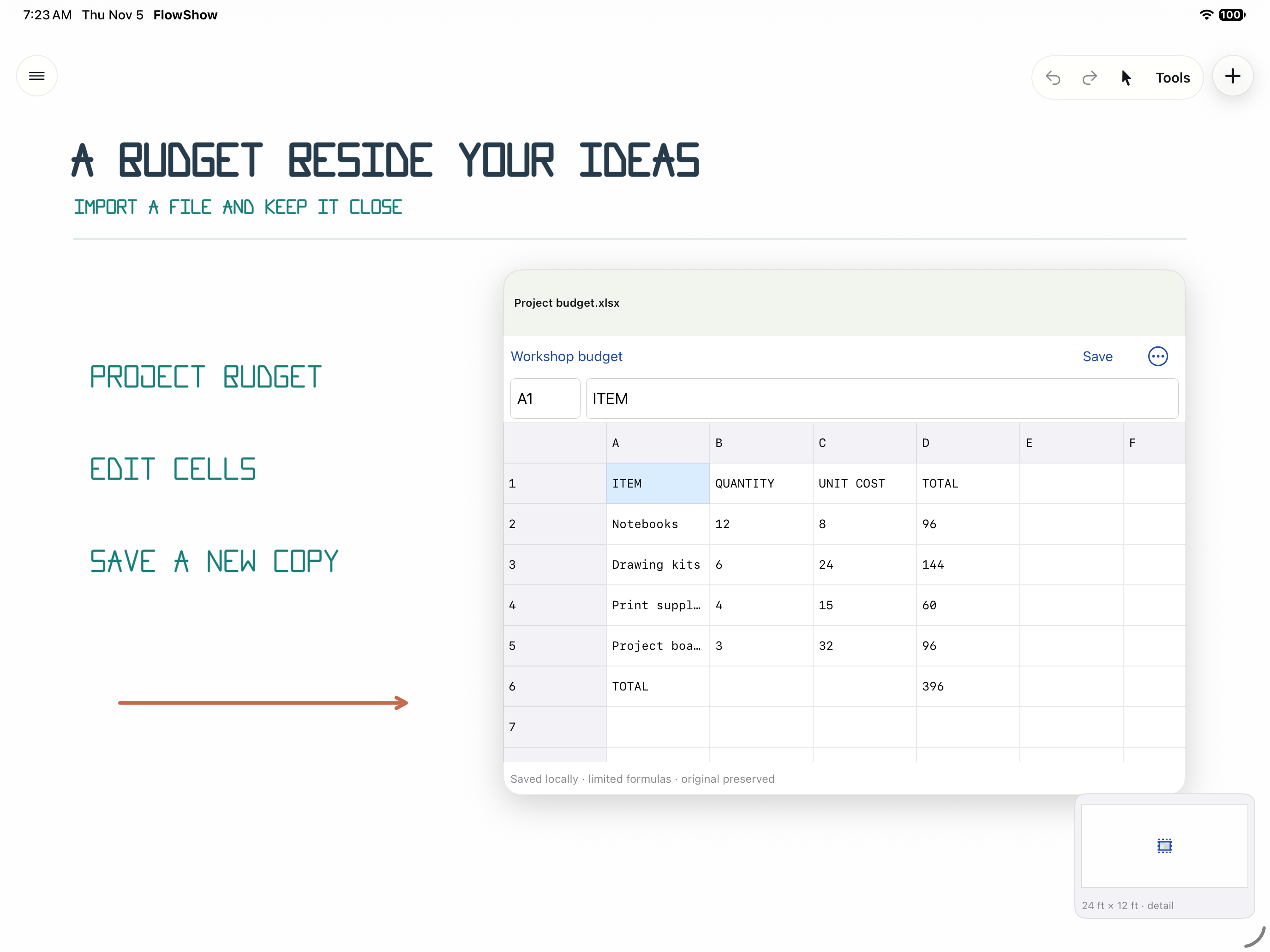
A budget belongs near the decisions that change it. FlowShow can keep a supported XLSX worksheet beside a design or plan, with notes explaining why a quantity or cost changed. This exercise uses a small practice range; its numbers are not a transcription of the screenshot's sample workbook.
Bring a simple workbook
Prepare or choose an XLSX workbook with an ordinary editable worksheet. Import it onto the board, open its file card and select the sheet. Place the card beside the relevant project area and pin its position when the layout is comfortable.
Avoid starting with merged, protected, shared or array-formula sheets: those structures are read-only in the documented editor. Legacy XLS is preview-only. This exercise deliberately stays inside the supported same-sheet formula scope.
Enter a checkable range
Use column A for a description and column B for an amount. Select the intended cell, confirm its address and enter each value through the cell/formula controls.
| Cell | Practice content |
|---|---|
| A2 / B2 | Materials / 120 |
| A3 / B3 | Printing / 80 |
| A4 / B4 | Supplies / 50 |
| A5 / B5 | Delivery / 25 |
| A6 / B6 | Total / =SUM(B2:B5) |
The total should be 275. With the four amounts unchanged, =AVERAGE(B2:B5) gives 68.75, =MIN(B2:B5) gives 25 and =MAX(B2:B5) gives 120. Use these as independent arithmetic checks, not as a reason to assume an imported complex workbook is fully compatible.
Change a decision and record why
Change the printing amount in B3 from 80 to 95. The total becomes 290. Write a short note on the board explaining the revision, such as an extra proof run or a different paper choice.
The worksheet records the new value. The board explains its cause. Your handwriting does not become a cell comment or another field in the XLSX file.
Save deliberately
Use Save in the document card and confirm that it succeeds. FlowShow forks an immutable edited asset and commits the board's reference before reporting success. If saving fails, the buffer remains available; do not treat that state as a completed handoff.
Reopen the card and check B3 and B6. Board autosave and the document editor's Save do different jobs. Complete both parts of your workflow before exporting work you intend to rely on.
Share the intended file
Choose the original import when the recipient needs the untouched workbook. Choose the latest saved edit when they need the revised budget. Open that exported copy in the destination application and review the relevant cells.
Unsupported formulas display Needs Excel and are preserved for compatible recalculation rather than given an invented answer. The XLSX reference lists supported functions and read-only boundaries.
Use PNG/SVG only when the recipient needs a visual view of the plan and budget. Use editable JSON to keep the FlowShow project and its relevant asset references available for continued work.