 FlowShow
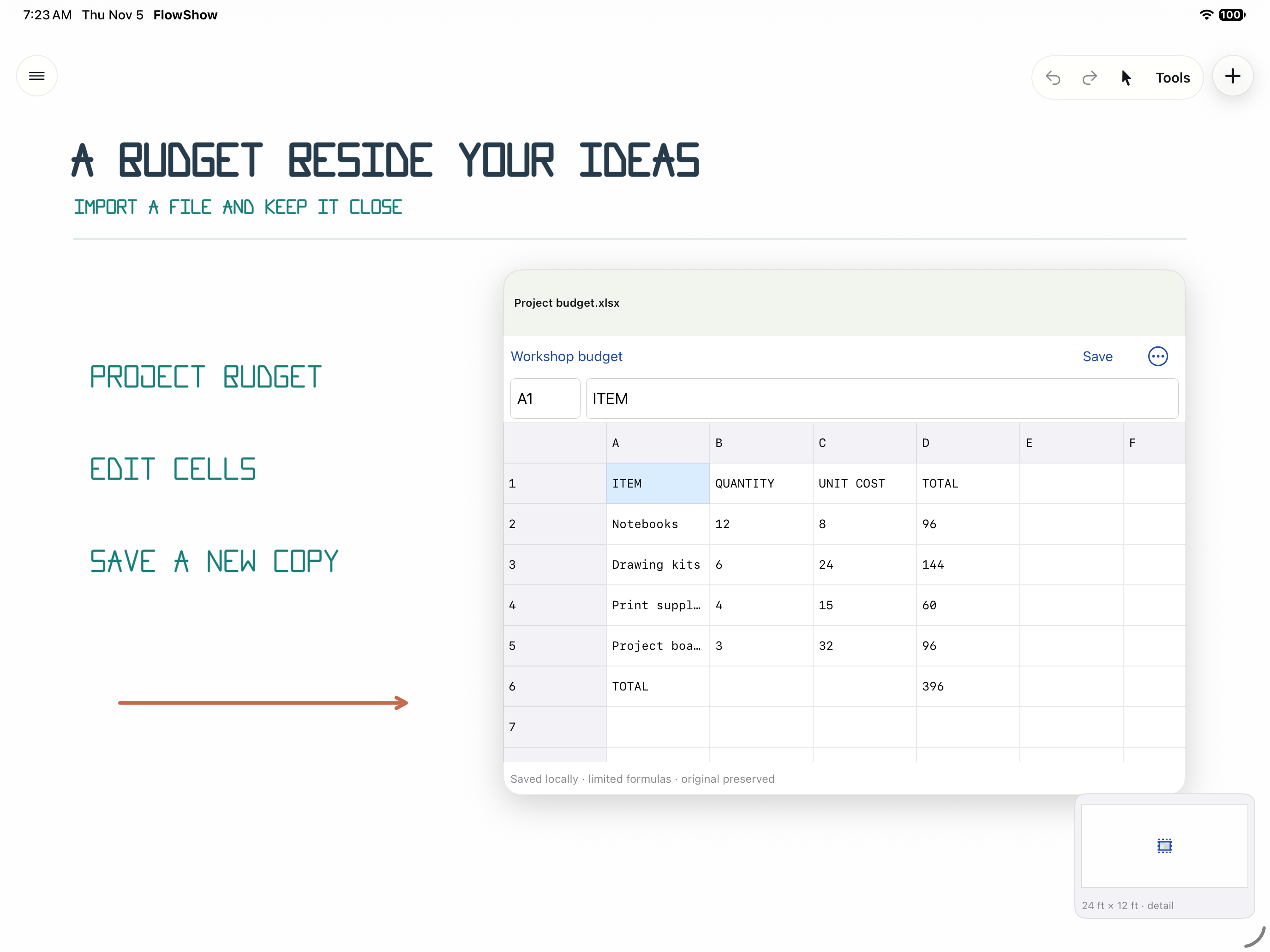
 7 can edit a supported XLSX workbook in a native board file card, offline. It provides worksheet selection, cell and address navigation, formula entry and a virtualized grid. This is a defined subset of spreadsheet editing, not full Microsoft Excel compatibility.
Open and navigate a workbook
Import an XLSX file onto the board and open its card. Select the worksheet you need, then navigate to the cell or address you want to inspect. Work with a small, understandable range before editing a large imported workbook.
The card can remain positioned beside notes, a drawing or a budget plan. Pin its frame when you need the contents to stay in place while you use the worksheet. Pinning the position and editing supported cells are separate actions.
Enter a value or supported formula
Select the intended cell and use the cell/formula controls to enter the value or expression. Check the address before overwriting an existing value. Review the displayed result and save deliberately when the edit is ready.
The documented formula subset includes arithmetic, same-sheet references and ranges, plus these functions:
| Function | Typical purpose |
|---|---|
| SUM | Add values in a supported range |
| AVERAGE | Calculate the arithmetic mean |
| MIN and MAX | Find the smallest or largest value |
| COUNT | Count numeric values |
| ABS | Return an absolute value |
| ROUND | Round a numerical result |
For example, a small budget can put amounts in B2 through B5 and total them with =SUM(B2:B5). If those cells contain 120, 80, 50 and 25, the expected total is 275. Keep such a check in a test workbook before adopting a more complicated sheet.
Same-sheet means the current sheet
Do not assume that a workbook using cross-sheet links, external workbooks or advanced functions will calculate inside FlowShow. The supported scope is same-sheet references and ranges. Imported formulas outside that scope are preserved rather than translated into an invented answer.
This is also why FlowShow's native table and its XLSX editor should not be treated as the same tool. The native table has its own small formula vocabulary, including AVG. The XLSX subset uses AVERAGE. See tables and text.
What Needs Excel means
Needs Excel is an explicit unsupported-result state. It means FlowShow is not calculating that formula within its supported engine. It is not a reliable numeric result and should not be copied into a report as though it were one.
Unsupported formulas are preserved, with cached results invalidated for recalculation in Office. When a workbook depends on those formulas, open the saved copy in a compatible spreadsheet application and let that application recalculate. Check the resulting values there before relying on them.
Read-only worksheet structures
Merged, protected, shared and array-formula sheets are read-only in the documented editor. A read-only result is a compatibility boundary, not a request to remove the document's protection or flatten it without review.
Keep the original file. Use Excel or another suitable authoring application for the unsupported operation. Legacy .xls files are preview-only rather than converted into fully editable .xlsx workbooks.
Save and reopen
Use Save in the document card after editing. FlowShow creates a new immutable asset version and synchronously persists the board reference before reporting success. If saving fails, the edit buffer is retained; do not close out an important unsaved change as though it had completed.
For your first workbook, make one small edit, save, close and reopen the card, then check that value. This verifies the workflow with the document you actually intend to use, not just with a synthetic example.
Share the intended version
The original imported workbook and latest edited copy are distinct. Use the sharing action for the version you want to send. An editable board export carries the relevant original/current asset references; a board PNG is only a picture of the layout.
Inspect an exported workbook in its destination application when formula recalculation, formatting or unsupported structures matter. FlowShow does not promise lossless editing of every Excel feature or a substitute for spreadsheet review.
Check a change before sharing
Using the practice budget above, change B3 from 80 to 95. =SUM(B2:B5) should change from 275 to 290. Save the document, reopen it and check both the changed cell and the total. Share the latest edited workbook, then inspect those same cells in the destination application.
This exercise tests a small supported same-sheet workflow. It does not establish compatibility for other sheets, formulas or structures in the file. The budget walkthrough keeps the worksheet and the board's explanatory notes distinct.