 FlowShow
Images can live beside your sketches rather than in a separate reference app. FlowShow supports image import from Photos, Files, the clipboard and drag and drop, including multi-image workflows. Imported original bytes are preserved with the board assets.
Bring in an image
Use the appropriate import route for the image's location. An image in Photos, a file in Files and an item on the clipboard are different sources, but each becomes a placed image on the board. Select the imported image to arrange it near your work.
- Import the image or chosen set of images.
- Place each reference in the part of the board it belongs to.
- Resize while preserving its proportions.
- Leave working space beside the reference for ink, shapes or notes.
- Use the minimap to return to the reference when the project grows.
Crop without replacing the original
Image crop is non-destructive. The board stores how the image is presented while retaining the original imported bytes. A crop is useful when only a region of a photograph or diagram matters to the current work.
Do not confuse a crop with removing private information from the underlying asset. If an editable export contains the original image, someone receiving that export may have more than the cropped view. Use a visual export when you intend to share only a flattened presentation, and inspect the exported file before sending it.
Flip and opacity
Flip can help compare mirrored compositions or explore a design. Opacity can keep a reference visible without making it dominate a sketch. These are image presentation controls, not a general photo-editing suite.
Keep the original reference readable enough to identify. Very low opacity can make a diagram look blank in a reduced preview or after printing. Check the actual export rather than judging only from the board's current zoom.
Work beside the reference
A productive layout separates the reference from the editable draft. For a product sketch, place the source image on one side and use Pencil ink and measured shapes on the other. For a mood board, arrange several references with brief notes identifying what you are borrowing from each.
Native ink sits above object layers. Object ordering can arrange images and other objects, but it does not create arbitrary interleaving of every Pencil stroke with every reference. Move or dim an image when it competes with your drawing.
Keep source and interpretation distinct
A photograph on the board does not automatically become a calibrated drawing. If you are using it to estimate dimensions, enter and verify those dimensions independently. Precision tools operate on board geometry, not on hidden measurements in an imported photograph.
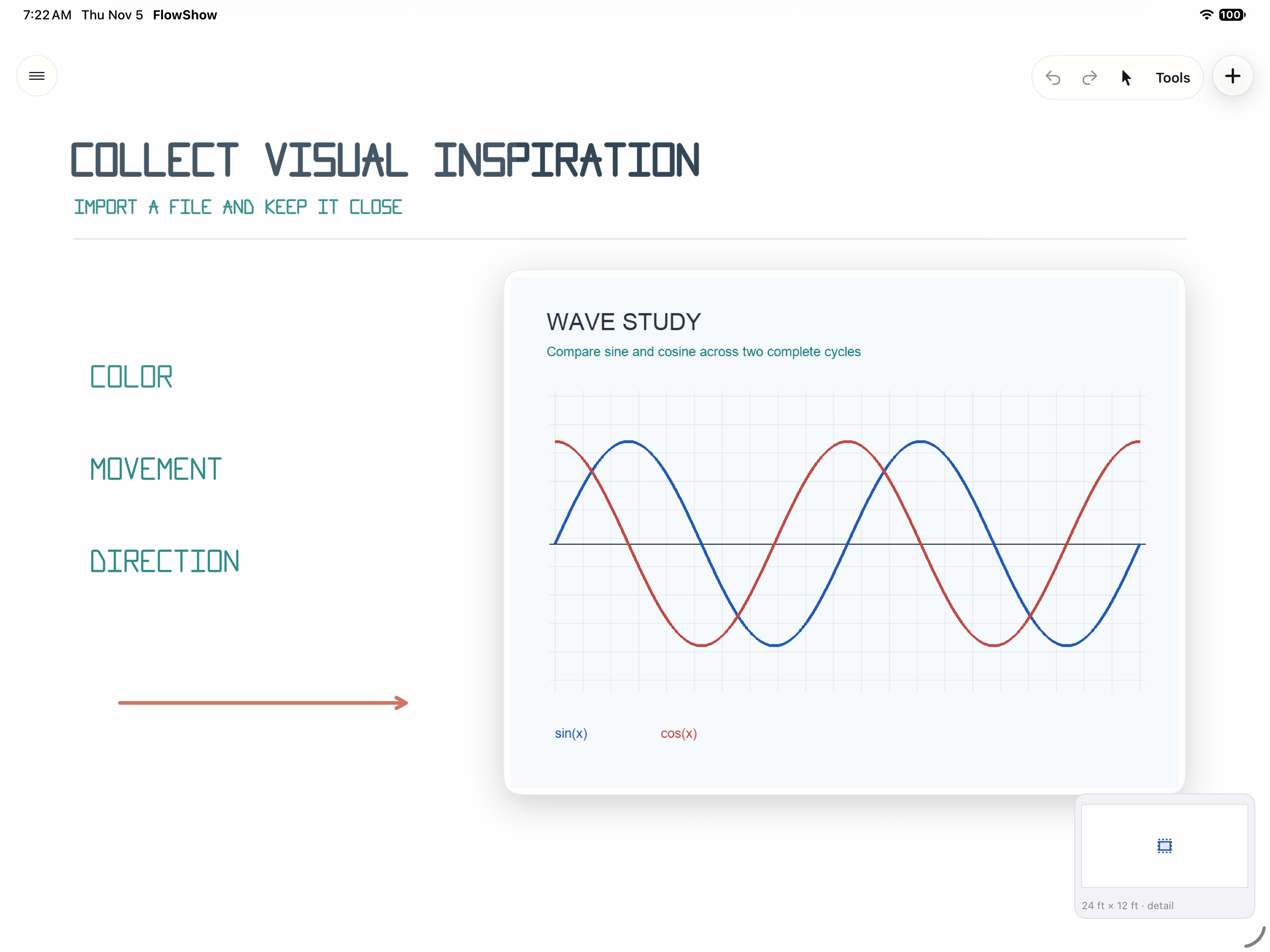
The same distinction applies to an image of a graph. It is a reference picture. To inspect numerical values and functions, use the calculator's graphing tools.
Save and share deliberately
The editable board format preserves imported assets for continued work. PNG and SVG serve visual presentation purposes. The original image is not made public simply because you place it on a local board, but sharing an export is a deliberate transfer of the included content.
Before sending a project, inspect its images and documents for material you do not intend to share. Browser sessions are separate from board exports, but imported photographs and files are part of the work you selected.