 FlowShow
 is an Apple Pencil-first whiteboard for iPad. A new board represents a surface 24 feet wide and 12 feet high. You can draw, arrange objects and keep supported files beside your work without turning the board into a sequence of pages.
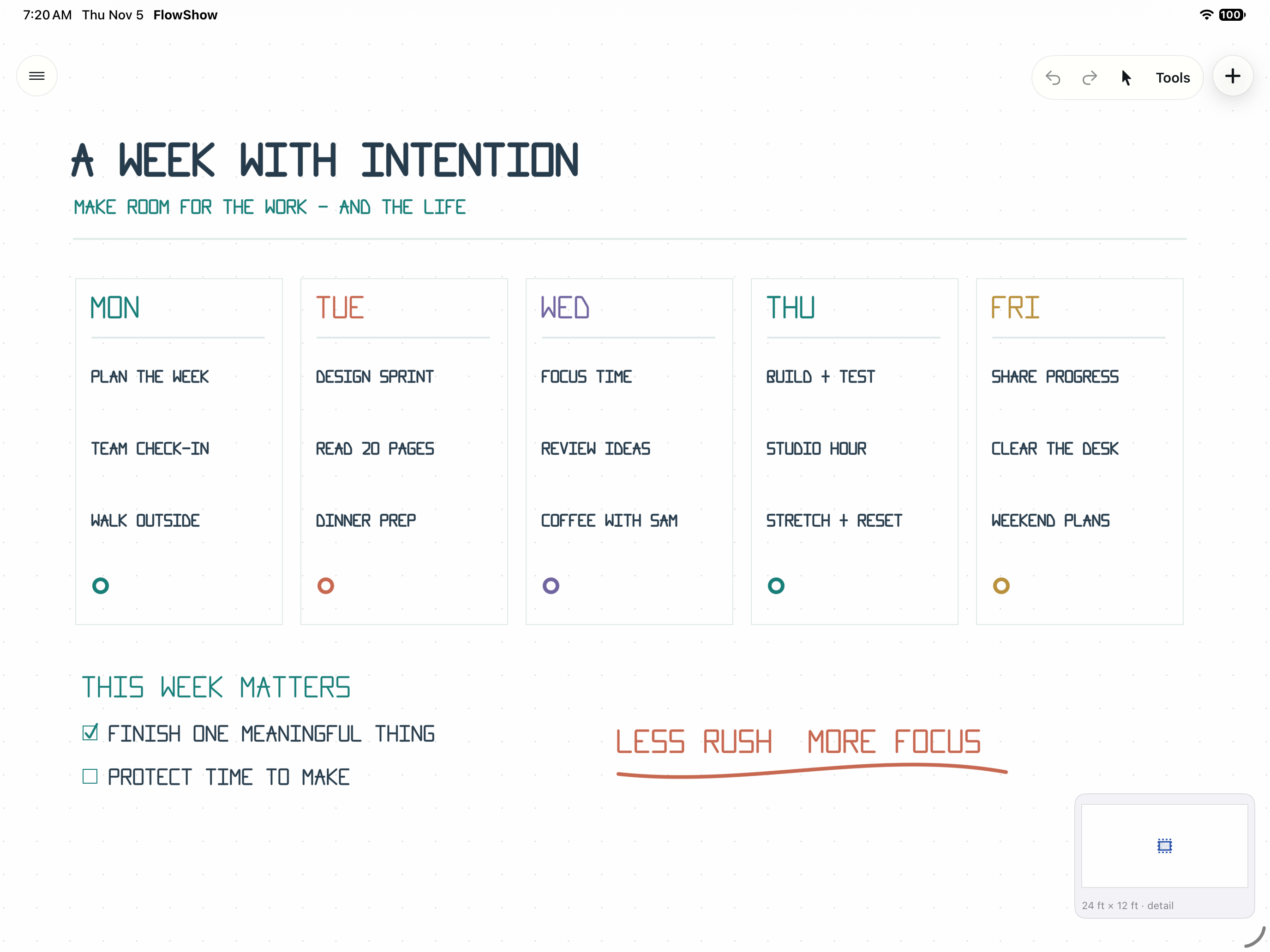
This guide describes FlowShow 7.0. The planning layouts shown here were made in FlowShow. They are examples you can build, not a library of automatically generated templates.
Start with one small task
For a first session, choose something that fits in a few minutes: a weekly plan, a diagram with three shapes, or a sketch with one reference image. A large board does not need to be filled to be useful.
- Open FlowShow and use a Scratch board for a quick idea, or create a project for work you want to keep organized.
- Start near the part of the board currently in view. Write a short heading with Apple Pencil.
- Add a few notes or shapes. Leave enough space between them to move and revise the layout.
- Use two fingers to navigate the board. Return to the overview with the minimap when you need to find your work.
- Reopen the board after your first session to become familiar with its saved position and content.
Pencil, fingers and the board
Apple Pencil makes ink. Fingers are used for object interaction and board navigation. Use two-finger movement for the board rather than expecting a one-finger stroke to work like a pen. Calculator keys and supported document controls accept finger or Pencil input.
This distinction is particularly important when a document or calculator is open. A drag inside a graph pans that graph. A drag on the calculator title bar moves the calculator. Board navigation remains separate. The navigation chapter explains these different surfaces.
Add a reference
Import a photo or an image from Files, the clipboard or drag and drop. Place it near the part of the board it explains. Resize it to leave room for handwriting. Image cropping in FlowShow is non-destructive, so the original imported bytes are kept with the board's assets.
A PDF belongs on the board as a reference pane. It is not converted into editable PDF text, and ink placed near or over a pane is not a new page-aware PDF annotation system. See files and PDF references before choosing an export workflow.
Try one tool, not every tool
For geometry, insert a shape and inspect its dimensions. Long-press a supported shape and use Display measurements to show its dimensions or angles. For a calculation, open Add → Graphing Calculator and enter a short expression. The calculator is movable and can be minimized while you draw.
You do not need to use the calculator, a browser or Office editing to use the whiteboard. They are available when the work needs them.
Save a copy you can reopen
The board autosaves locally. When you need a transferable, editable copy, use the editable JSON export. A PNG is an image of the board, not a substitute for an editable backup. SVG is a visual export, not the native project record.
For an imported Word or Excel file, use the document card's Save action for edits before sharing an edited copy. Board autosave and a document editor's Save state serve different jobs. A failed document save leaves the editing buffer available; do not treat a failed save as a completed export.
A useful first-board check
Before trusting an important project to a new workflow, make a small test board. Add a line of ink, an image and a file. Save the file edit, export an editable board, then import that copy and check the result. Keep the original project while you test.
This is a practical way to learn which parts of your work belong to the board, which belong to an imported document, and which are live services such as a browser or Calendar pane. Continue with boards and projects and saving and exporting.
Pick a complete practice project
Follow the weekly-plan example for drawing and arrangement, the budget example for file editing, or the sine-and-cosine example for the calculator. Each starts with a concrete input and ends with a useful saved or shared result. You can leave the other tools alone until the project needs them.