 FlowShow
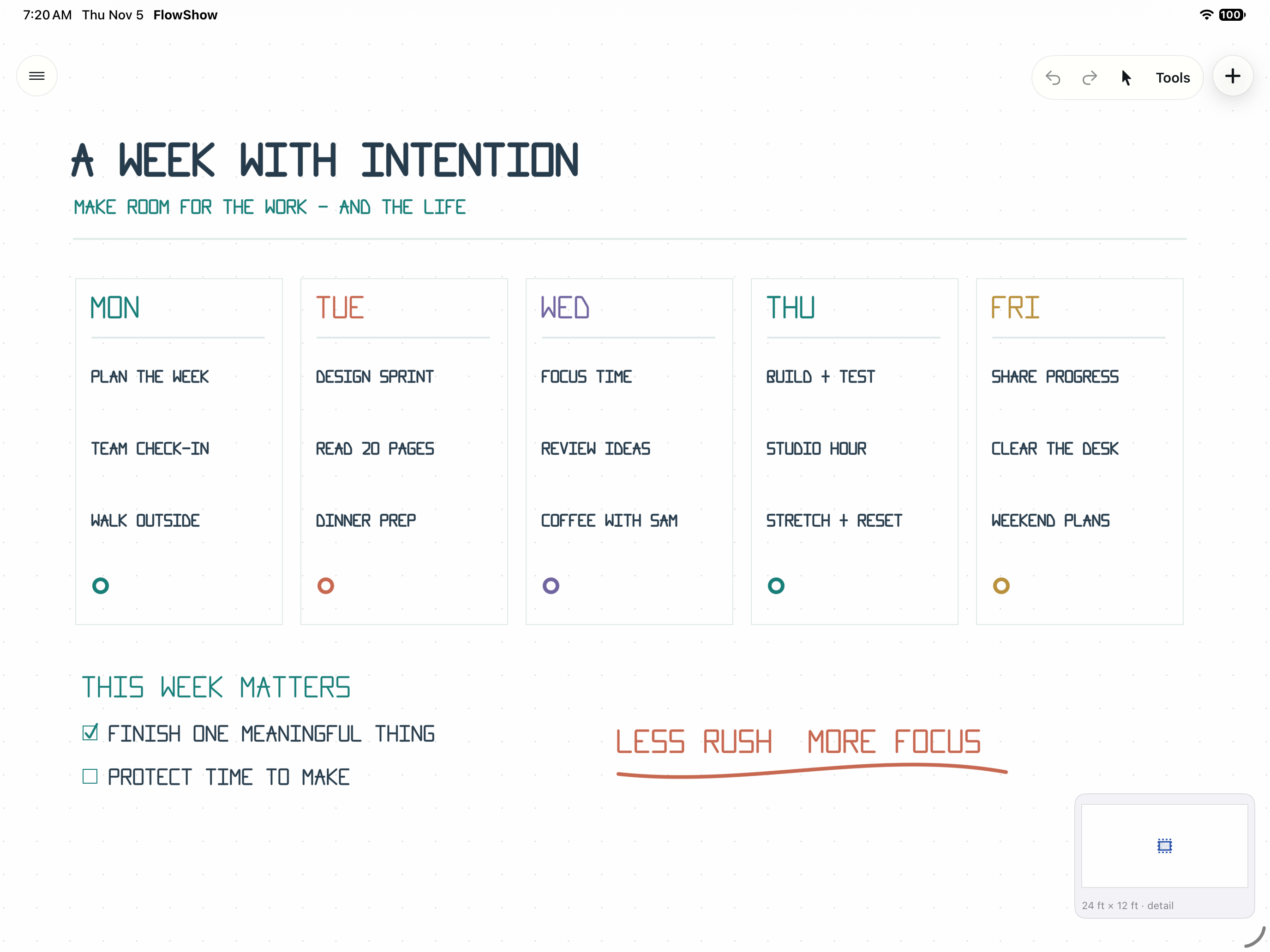
This board gives each weekday its own area and keeps the week's priorities below. It is deliberately simple: a few notes, consistent spacing and enough empty board to accommodate a change. The screenshot is an actual FlowShow example, not a built-in planner template.
Lay out the week before filling it
Create a project for the plan. Insert five rectangular objects and arrange them in a row, using duplication and alignment to keep their size and spacing consistent. Add Monday through Friday as headings with your preferred writing method. Leave a band beneath the row for priorities that do not belong to one particular day.
Make the headings readable at the scale where you will usually work. There is no need to fill the entire 24 × 12-foot board. A compact region is easier to navigate when the plan itself is still small.
Separate commitments from intentions
Write the day's concrete commitments in its column. Keep broad intentions below: the screenshot uses a “This week matters” area to distinguish them from the daily list. A change of ink color can separate the two without adding another box to every line.
For a practice plan, try this structure:
| Area | Put here | Leave out |
|---|---|---|
| Daily columns | A few specific actions or appointments | Every possible task for the week |
| Weekly priorities | One or two outcomes worth protecting | A duplicate of the daily columns |
| Spare space | Questions and unscheduled work | Another permanent category before it is needed |
The content is yours. FlowShow does not turn these handwritten lines into task records, reminders or calendar events.
Make changes without rebuilding the layout
Use editable objects for the parts you expect to resize or move. Group related objects where useful, then inspect their position after an adjustment. Freehand ink is a separate native drawing layer; grouping a rectangle does not make every stroke inside it part of that group.
For frequent rearrangement, keep the structural objects simple and avoid filling them with elaborate handwriting until the week is reasonably settled. Use Undo for a change you did not intend rather than moving more objects to compensate for it.
Add only the references this week needs
A PDF agenda, an image or a supported document card can sit outside the daily columns. Keep it close enough to consult without allowing it to obscure the plan. A native Calendar pane can show agenda and event information with permission; it remains separate from the manually written week.
The browser and Calendar chapter explains those panes. The document overview explains what can be edited rather than merely previewed.
Finish with two views
Zoom out to check that the week reads as a whole, then return to the day's detail. Use the minimap to find your place as the board expands. The plan is successful when the next important action is easy to find, not when every region is occupied.
Keep the project for ongoing work. Export editable JSON for a transferable backup, or PNG/SVG when someone only needs the visual plan. Inspect the visual export for legibility before sharing it.