 FlowShow
FlowShow gives a plan room to change shape. Write the next few actions with Apple Pencil, arrange stages with editable objects and keep the relevant brief or image nearby. A new board is 24 feet wide by 12 feet high, but you can start with one small, readable area.
The examples here are manually arranged boards made with FlowShow's drawing and object tools. They are not built-in templates or an automated task-management system.
Plan a week, not a dashboard
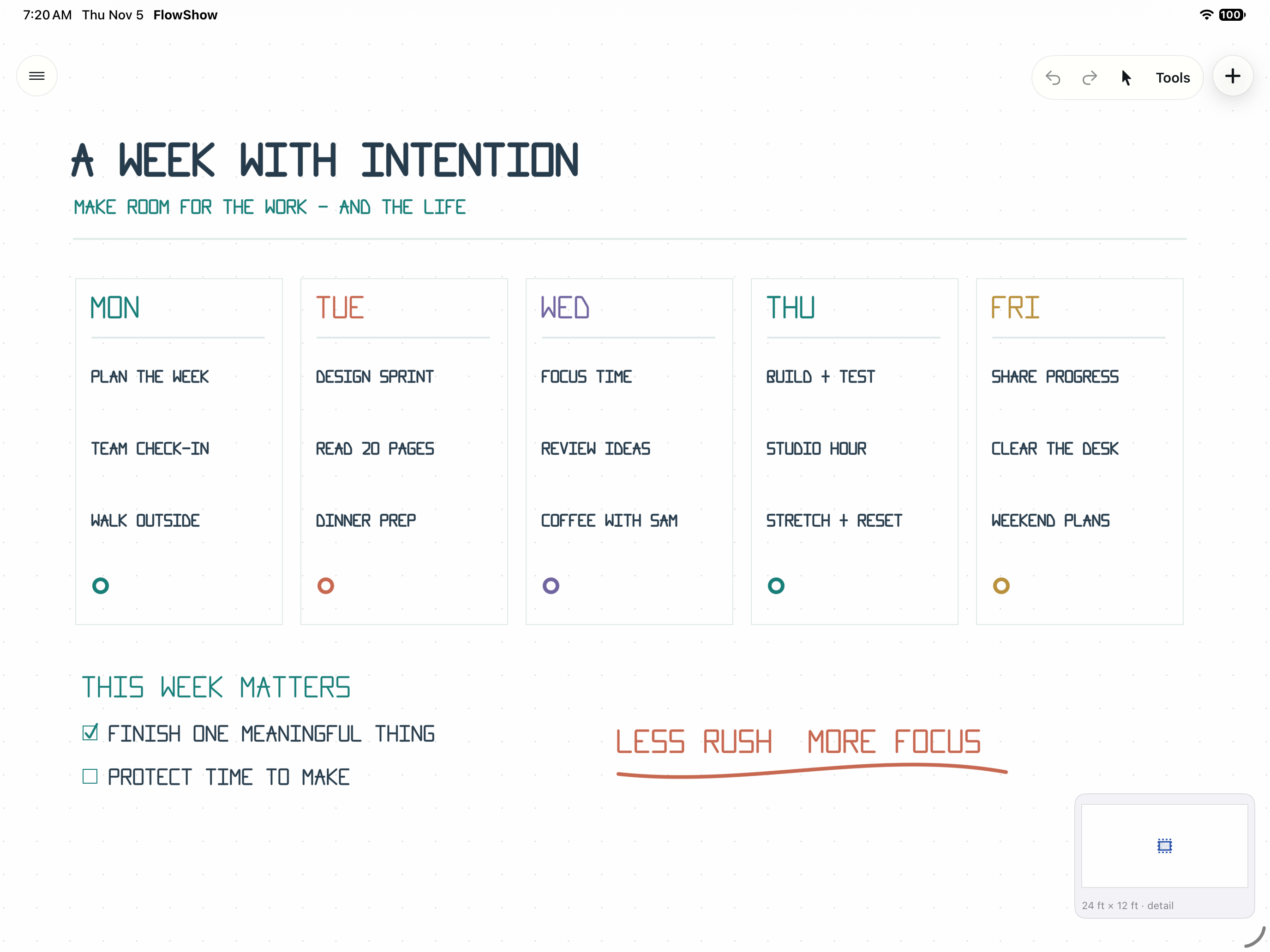
The weekly board separates Monday through Friday and keeps a short priorities area underneath. That is enough structure to distinguish daily commitments from work that matters across the whole week.
Begin with five headings, add a small number of actions and leave space between them. Use one accent color for emphasis rather than turning each note into a new visual category. A deliberately empty region gives you somewhere to put work that does not yet have a day.
Make the weekly plan with a reproducible arrangement and a choice of editable or visual export.
Map stages before assigning dates
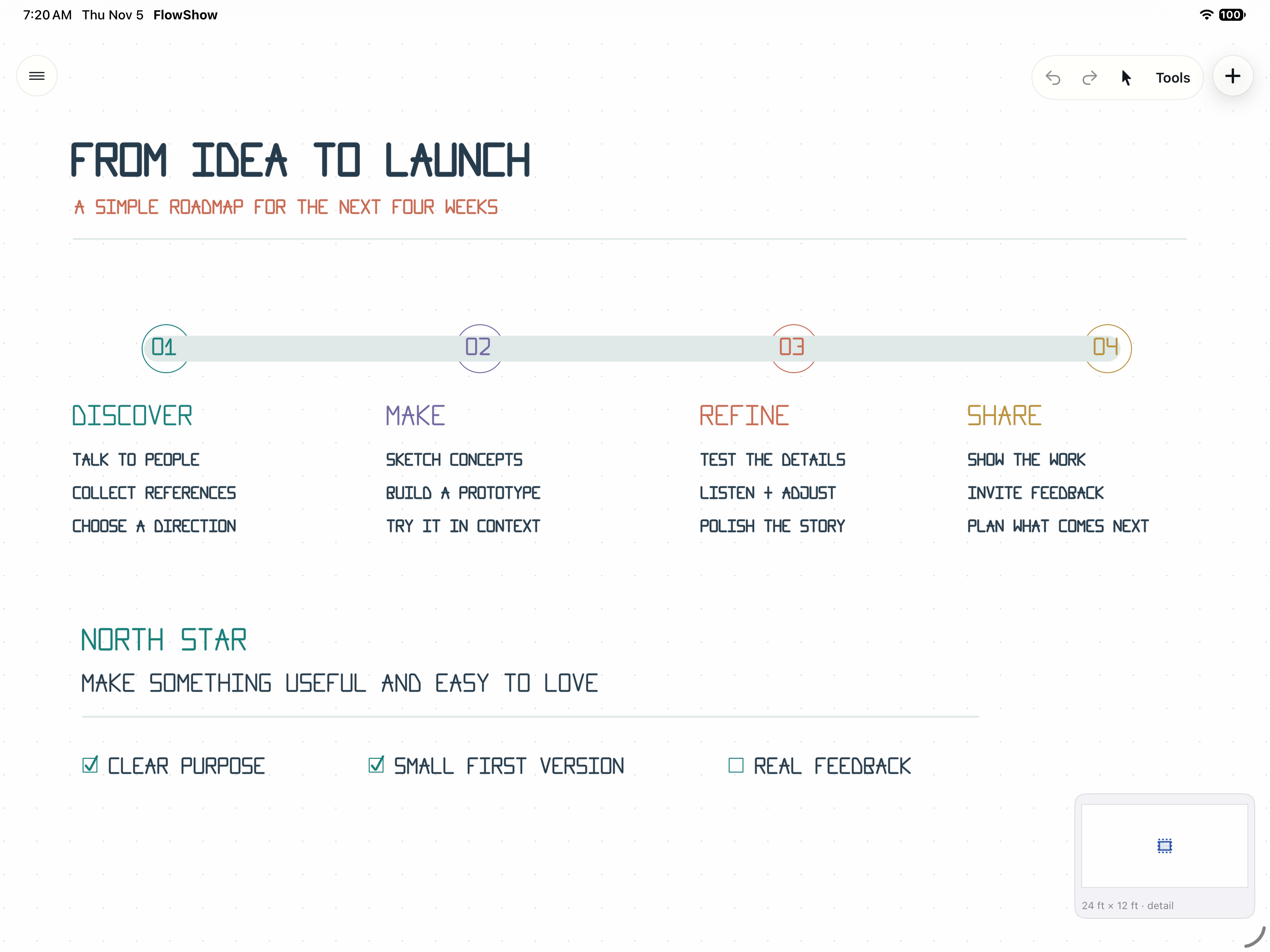
A roadmap can start with Discover, Make, Refine and Share. Put the intended outcome under each stage, then identify the next decision or artifact. Use lines and shapes for the structure and Pencil ink for questions that are still unsettled.
This separates “what happens next?” from a schedule. FlowShow's board objects do not create automatic dependencies, deadlines or reminders. A project-roadmap walkthrough shows how to keep the plan editable without implying those behaviors.
Use a project wall when work changes state
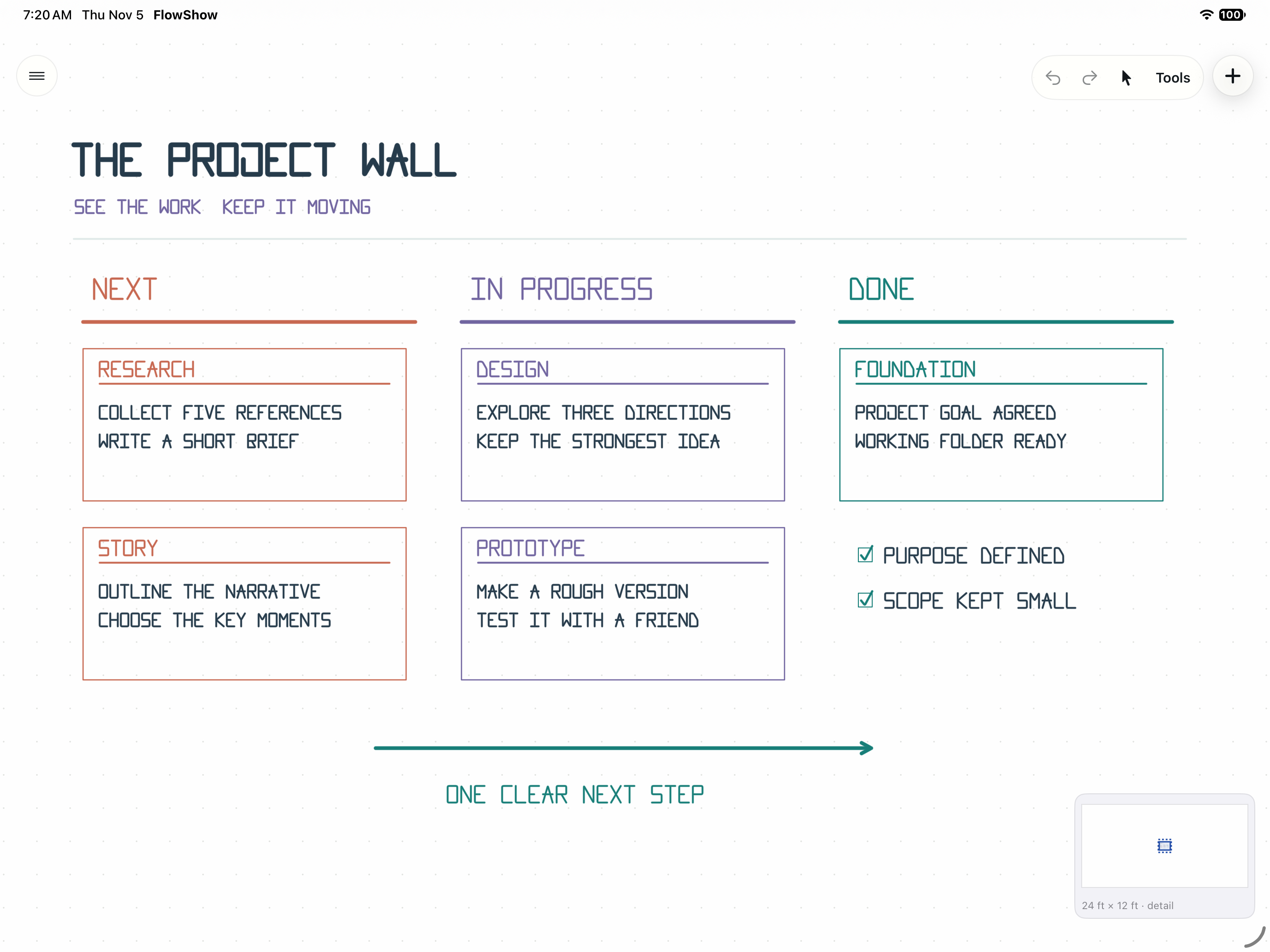
Manually arranged Next, In progress and Done columns can make a small project legible. Keep each item short. Group related objects where useful, move them deliberately and leave room for notes explaining a blocked task.
The project-wall screenshot demonstrates a Kanban-style arrangement, not a task database. There is no automatic status engine behind the columns. That can be a good fit for a personal planning board where sketching and rearranging matter more than reporting.
Let a mind map stay exploratory
A central question and a few branches can hold more useful uncertainty than an early list of tasks. In the creative-retreat example, Place, People, Make, Reset and Bring organize the thought without forcing everything into a timeline.
Build branches with ink or editable lines and put the supporting notes near each one. Revisit the central question after the map grows. The mind-map example explains the layout and the difference between drawn branches and automatic connectors.
Keep context, then make the decision visible
Meeting notes benefit from a clear separation between the question, decisions and actions. A file card can keep the brief close; a browser pane can hold a web reference. Apple Calendar panes provide native agenda and event controls with permission, but a handwritten task does not become a Calendar event automatically.
Use the browser and Calendar guide when those live panes are part of the work. Keep the board's important decisions visible even when the reference pane is closed.
Keep the editable plan
Local autosave keeps ongoing board work on the device. Export editable JSON to preserve a transferable project; choose PNG or SVG when someone only needs to see the plan. Complete any Office document Save before sharing its latest edited copy.
The minimap helps you find a region as the board grows. It is not a reason to make a plan unreadably dense. A useful board leaves the next action easy to find.