 FlowShow
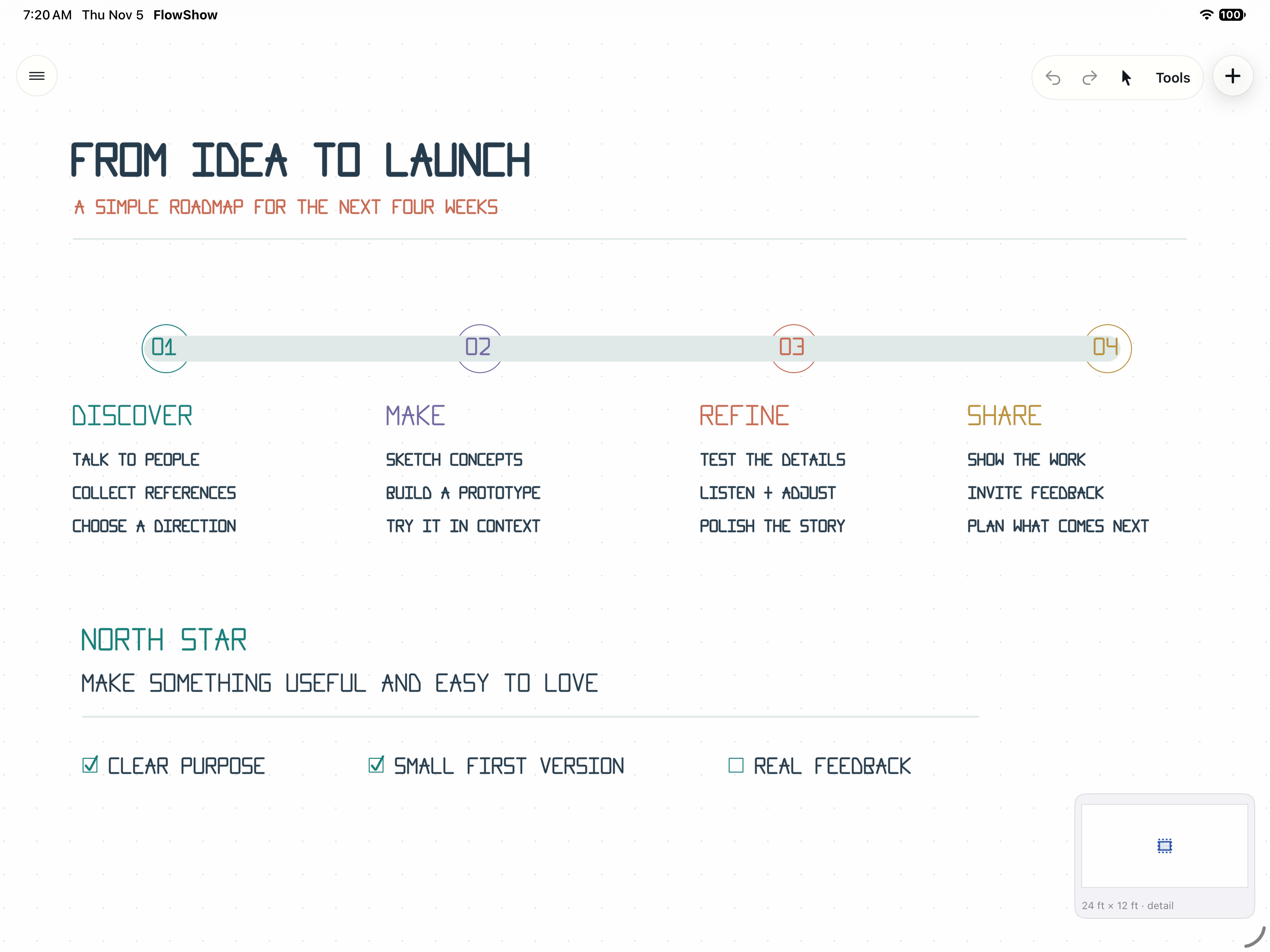
The roadmap in this example uses four stages: Discover, Make, Refine and Share. Each has a short explanation underneath, while a separate “North star” area states what the project is trying to achieve. That separation keeps the purpose from getting lost among the tasks.
Start with the outcome
Write one sentence describing a useful finished result. Avoid a slogan that could describe any project. “A simple, readable guide for a first-time user” is a more actionable direction than “Make something great.”
Place it below or beside the roadmap where it remains visible. When a later idea adds work, compare it with this sentence before giving it a place on the board.
Make the four stages editable
Insert a horizontal line and four markers, then add the stage headings. Use alignment to establish a consistent reading order. Put the notes below each stage rather than on top of the connecting line.
A practice project could use the following arrangement:
| Stage | Useful question | Visible result |
|---|---|---|
| Discover | Who is this for, and what do they need? | A brief and a few references |
| Make | What is the smallest version worth trying? | A sketch or prototype |
| Refine | What did the first attempt reveal? | Specific changes to make |
| Share | What should the recipient receive? | The right files and a clear next step |
These are planning prompts, not automated states supplied by FlowShow.
Keep evidence near the decision
Place a reference image near Discover, a supported DOCX brief beside Make, or a PDF review near Refine. Pin a file card's position after arranging it. Supported Office edits have their own Save action, separate from the board's autosave.
The reference should explain a decision already visible on the board. If understanding a stage requires opening every pane, bring the conclusion out into a short handwritten note.
Revise the sequence deliberately
Duplicate or rearrange objects as the plan changes. FlowShow provides grouping, alignment and ordering, but it does not infer a dependency graph or shift a schedule when you move a marker. Write dates and assumptions explicitly when they matter.
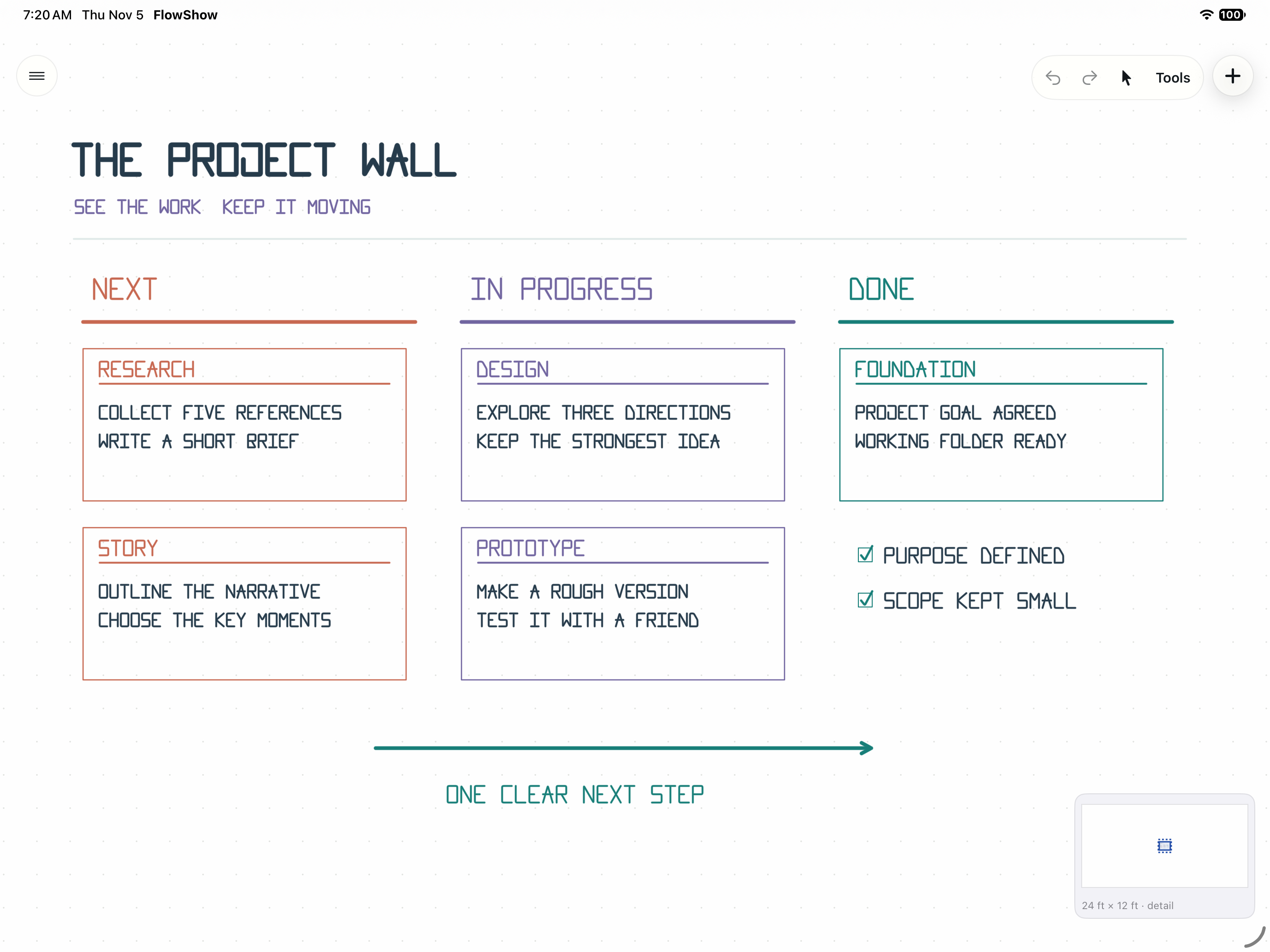
For day-to-day work, a separate region can use Next, In progress and Done columns. The project-wall capture below shows that manually arranged approach. Keep it distinct from the high-level roadmap so the whole project does not become one long task list.
Prepare the handoff
Write down what “Share” means for this project: a visual review, an editable board, the original brief or an edited workbook. Use PNG/SVG for the board's visible arrangement and JSON for continued FlowShow editing. Share a saved Office file from its own card when the recipient needs the document rather than a picture of it.
Before closing the project, check that the next decision and its owner are clear in the notes. FlowShow will preserve the board; the plan still needs to explain what happens next.