 FlowShow
A brief, a budget and a reference drawing often describe the same project from different angles. FlowShow keeps them beside the work on a 24 × 12-foot iPad whiteboard. Some file contents are editable; others are references. Choose the surface that fits what you need to change.
What each format does
| Format or pane | Supported work | Important boundary |
|---|---|---|
| XLSX | Offline cell editing, worksheet navigation and basic same-sheet formulas | Unsupported formulas need compatible recalculation; specified complex sheets are read-only |
| DOCX | Offline editing and insertion of plain top-level paragraphs | Complex structures remain read-only |
| Native preview and frame-position pinning | No PDF text editing or new page-aware annotation | |
| Images | Placement, crop, flip and opacity | Image adjustment does not edit the source document's data |
| Plain text | Editable text-file panes | Not the DOCX authoring surface |
| Native tables | Board cells with a small formula subset | Not an Excel workbook |
| DOC / XLS | Legacy file preview | Not native editing of those older formats |
The compatibility reference is the detailed source for formulas, formats and export behavior.
Put the budget beside the decision
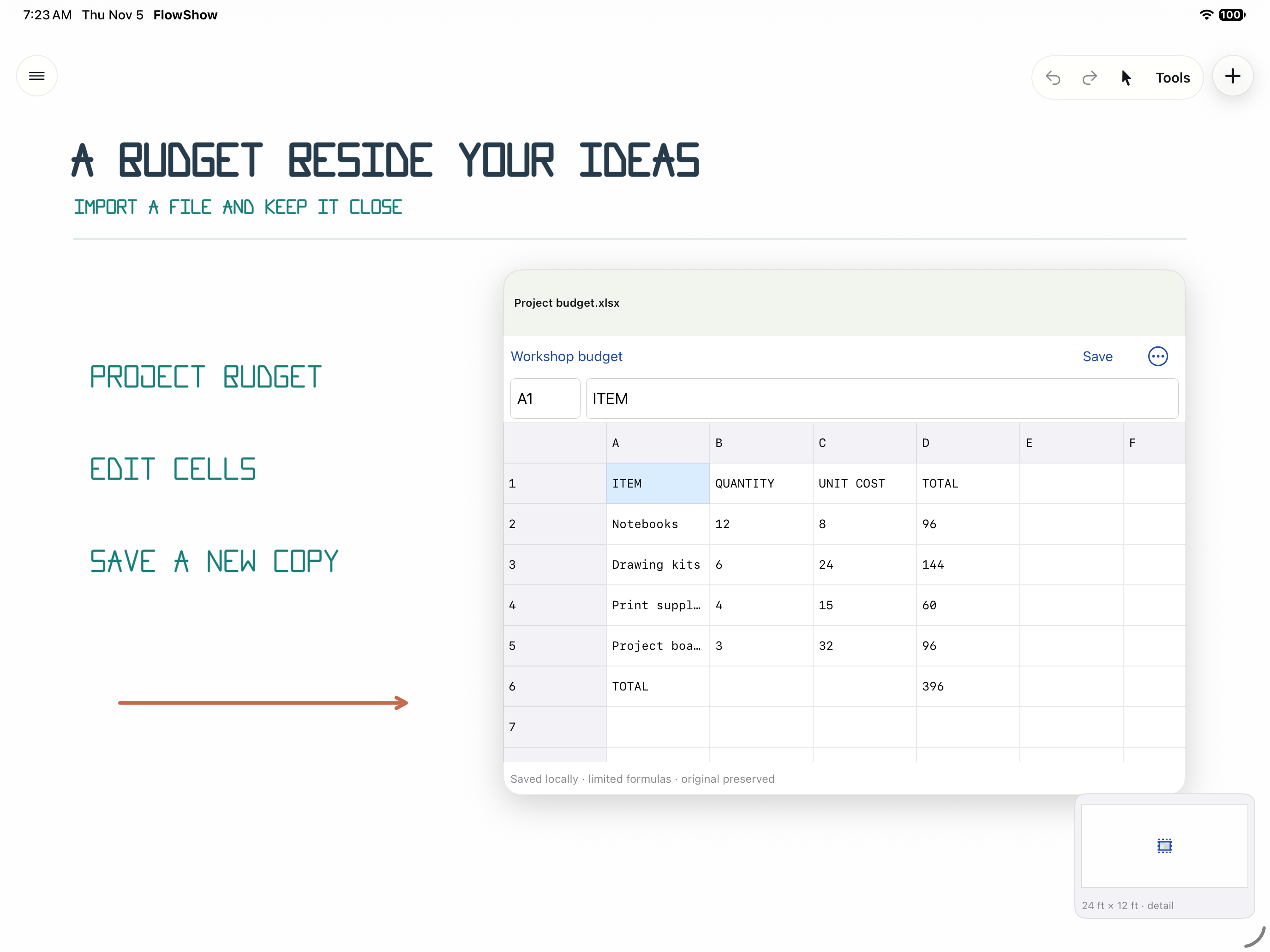
Open a supported XLSX workbook in a native file card and keep its quantities or costs near the diagram they explain. Select a worksheet, inspect the cell address and enter a value or supported formula. Pin the card's position when the arrangement is right.
A simple same-sheet total such as =SUM(B2:B5) is within the documented subset. Cross-sheet or advanced formulas are not a reason to assume full Excel behavior. Unsupported results display Needs Excel, with the formula preserved rather than translated into a made-up value.
Explore XLSX editing or work through a project budget.
Revise the brief while the draft is visible
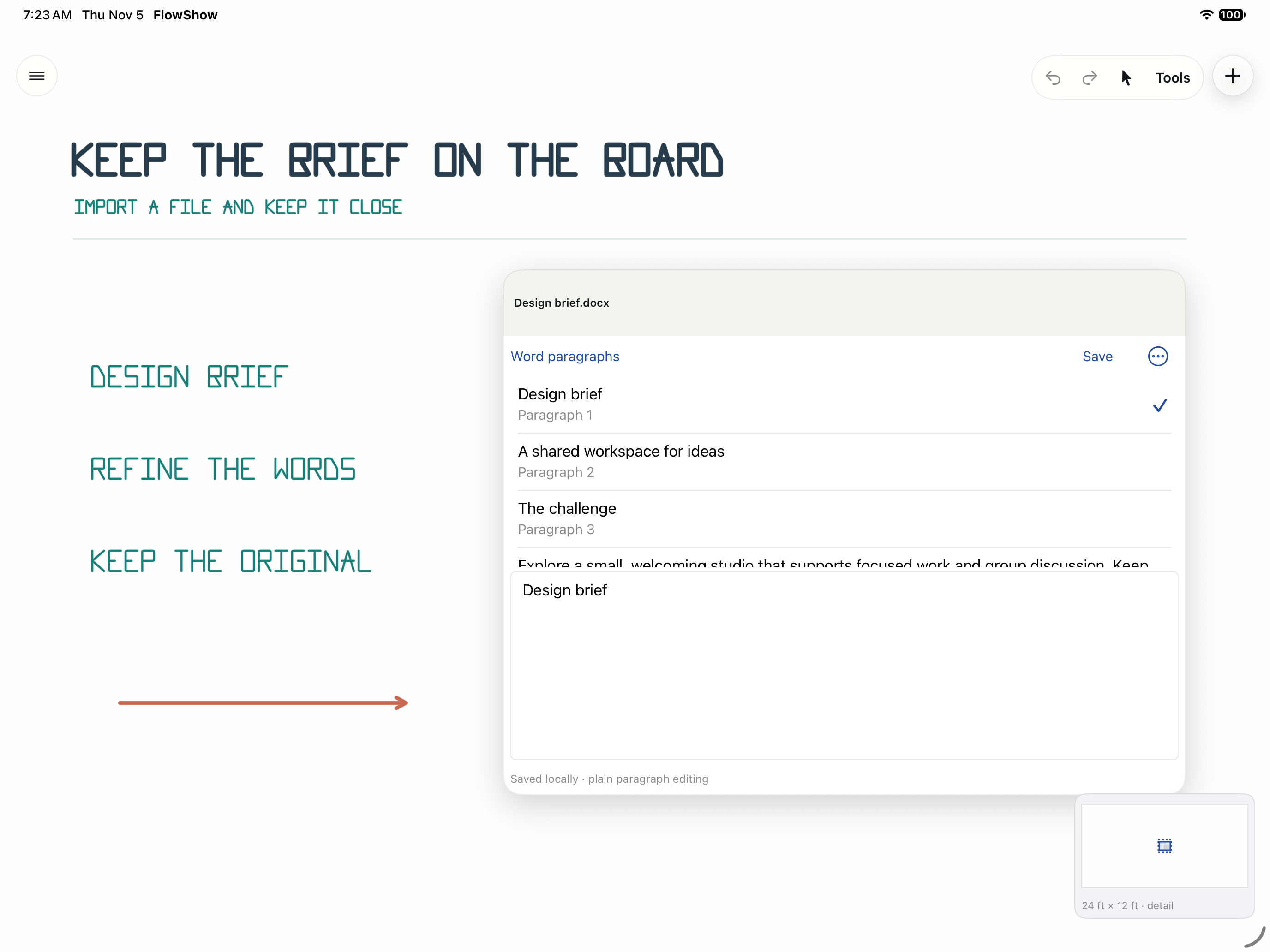
A supported DOCX card lets you edit plain paragraphs beside a sketch or storyboard. Change a requirement, insert a paragraph and save the edited version. Keep the visual response on the board so the wording and the drawing can be reviewed together.
Complex structures, including unsupported fields and tables, are not presented as fully editable equivalents. The editor preserves unknown package content. Drawing over the pane does not insert your ink into the Word file.
Work with DOCX paragraphs or open the editing guide.
Read a reference without turning it into an editor
Use a PDF card for a prepared reference. Keep it beside a drawn explanation and pin its frame position after placing it. Board ink near or over a PDF remains board ink, not a page-aware annotation attached to the PDF.
Images have a different role. Import through Photos, Files, clipboard or drag and drop, then use proportional placement, non-destructive crop, flip and opacity. Original imported bytes remain in the board's owned assets.
PDF references and image placement describe the two workflows.
Pin the frame, use the content
A file card has a place on the board and an interactive surface inside it. The Office workflow separates frame-position pinning from supported content editing. Arrange the reference where it helps, pin it, then use its controls without treating every touch as a request to move the pane.
Different input surfaces behave differently. Pencil drawing, finger object movement, board navigation and document controls are not interchangeable gestures. The navigation chapter explains the distinction.
Save first, then choose what to share
The board autosaves locally. Supported Office edits also have a deliberate Save action. A successful save creates an immutable edited asset and durably commits its board reference. Failed saves retain the editing buffer.
Share the original import when the recipient needs the untouched file. Share the latest saved edit when they need your document changes. Export editable JSON for a continuing FlowShow project, or PNG/SVG for the board's visible composition.
A screenshot of a worksheet is not an editable workbook. A Word file does not contain the surrounding board notes. The export guide helps you make the handoff match the work.