 FlowShow
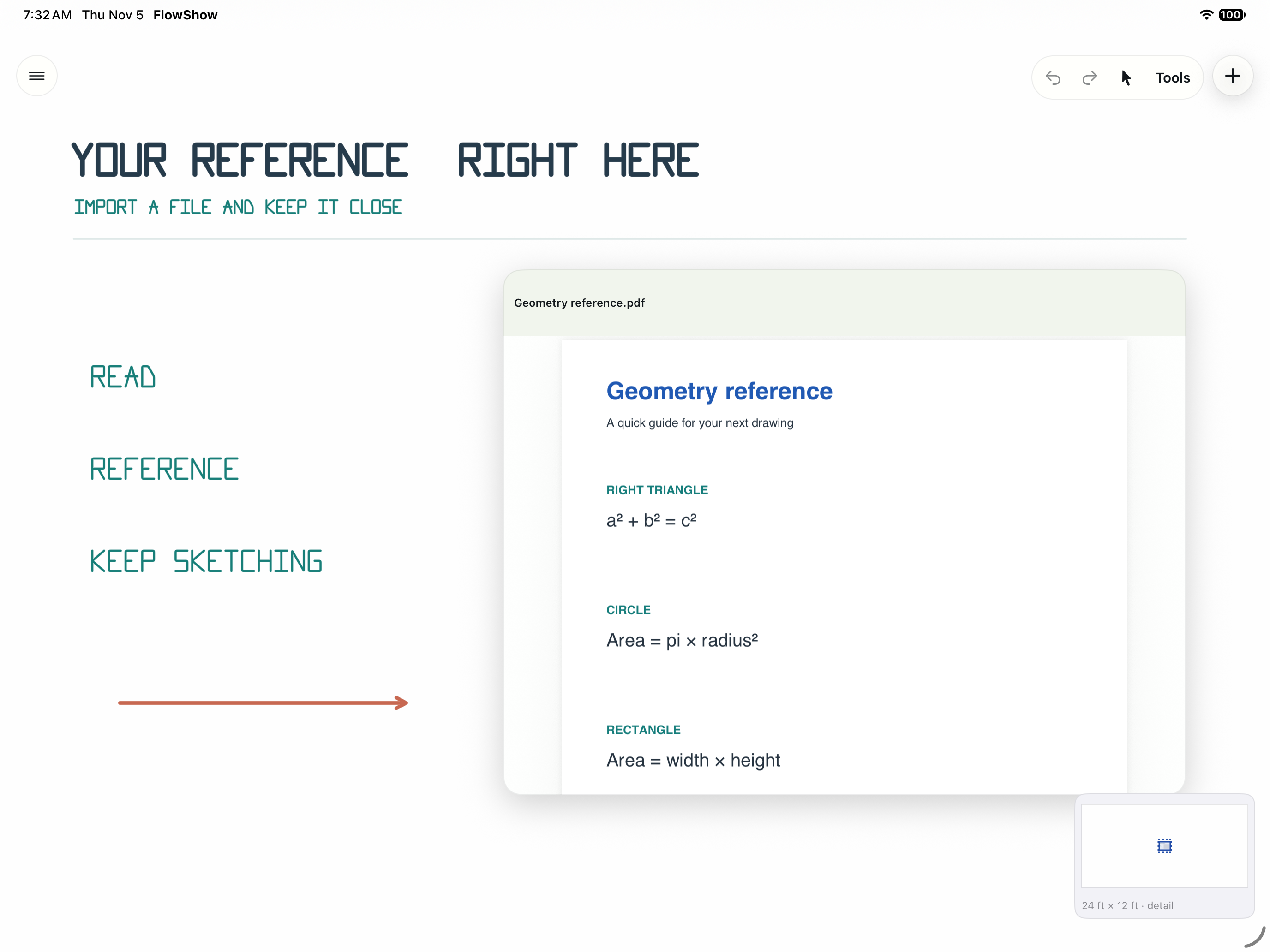
Keep a reference PDF on the board while you work through its ideas with Apple Pencil. FlowShow uses a native PDF preview in a file card, so a geometry reference, specification or reading can stay beside your diagram instead of becoming another window to keep finding.
Give the reference a useful place
Import the PDF, open its file card and place it beside the part of the board it supports. Leave enough room for the diagram and the notes you expect to add. Pin the card's position when it is arranged correctly.
In the example above, the PDF contains short geometry reference material. The nearby board is available for the working: a drawn shape, a numerical calculation or a note explaining which relationship is being used. The document remains the source, not the entire workspace.
Build a reading-and-working layout
Start with one question rather than every page of the PDF. Place the reference at one side, write the question in the open board area and sketch the part you need to reason about. Use an inserted shape when its dimensions matter, or freehand ink when a rough explanation is enough.
For a geometry exercise, a practical sequence is to read the relevant relationship, construct the shape, display its measurements and write the calculation beside it. The measured-geometry walkthrough shows the drawing part. The calculator guide covers numerical work without replacing the board.
Preview is not PDF editing
FlowShow's PDF feature is a reference preview. It does not edit the PDF's text, and this release does not add page-aware PDF annotation. Ink placed on the board near or over a file card remains board ink; it is not a markup attached to a particular PDF page.
That distinction affects both navigation and sharing. Do not expect handwriting to follow an individual page as the PDF changes its view, or expect sharing the original PDF to include the board's notes. Use the board for the explanation and the document for the reference.
Choose the right reference format
A PDF is appropriate when you want to read a prepared document. Use an image when you need a visual reference with non-destructive crop, flip or opacity controls. Use supported DOCX or XLSX editing when the text or cells themselves need revision.
| Material | What FlowShow provides |
|---|---|
| Native preview and frame-position pinning | |
| Image | Placement, crop, flip and opacity while preserving original bytes |
| DOCX | Supported plain-paragraph editing |
| XLSX | Supported cell editing and same-sheet formulas |
Documents on the whiteboard compares the full workflow without treating these formats as interchangeable.
Share the explanation, not the wrong file
Use an editable JSON export to preserve a continuing FlowShow board and its relevant file assets. Use PNG or SVG for the visual composition, and inspect the exported result before sending it. Sharing an imported file itself is a different action from sharing the board around it.
A recipient who needs only the source PDF should receive the PDF. A recipient who needs your reasoning needs the board's visual or editable export as well. The saving and exporting guide explains the limits of each choice.