 FlowShow
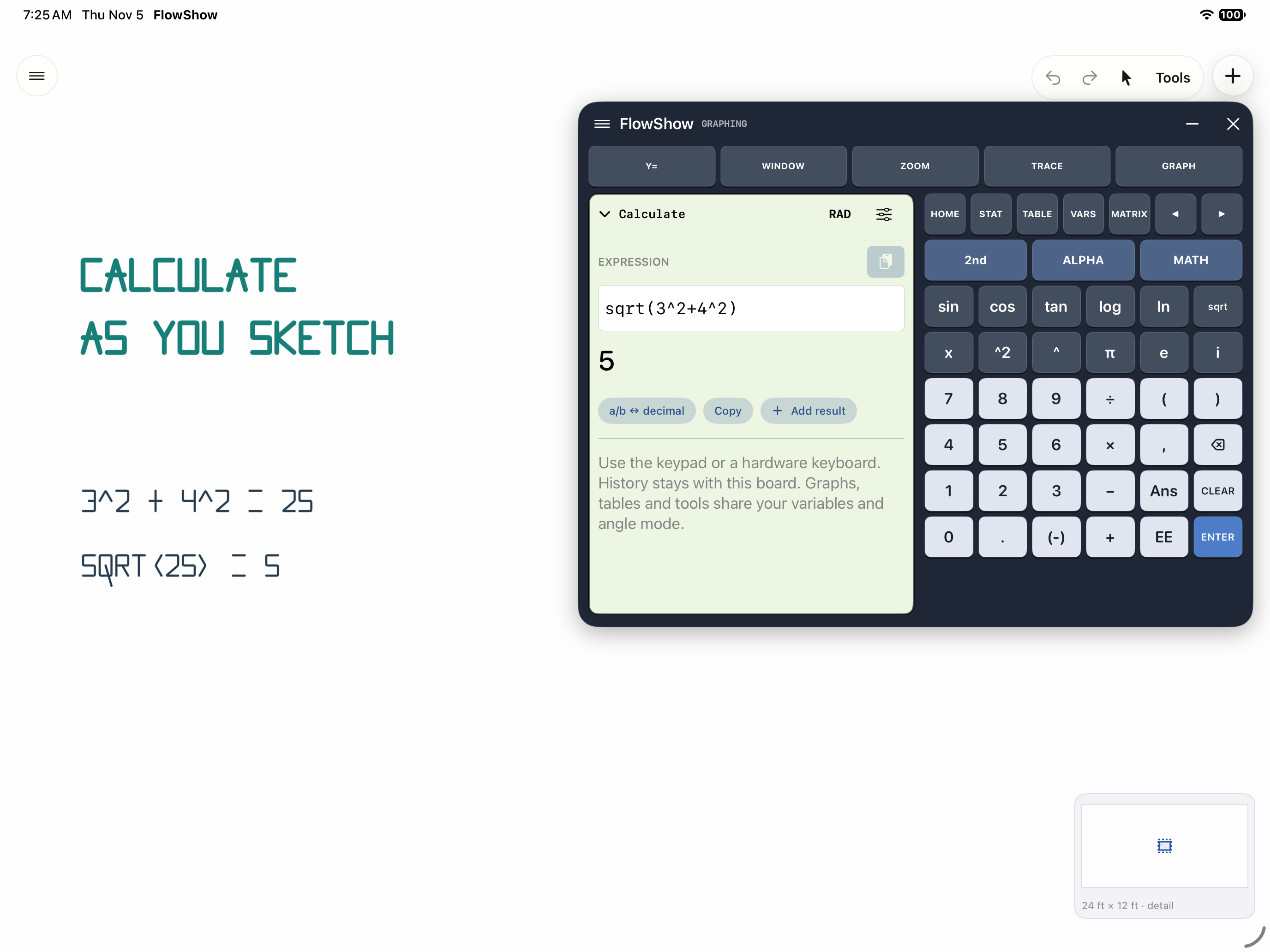
Choose Add → Graphing Calculator to open FlowShow's numerical calculator. It floats above the board, so you can calculate while keeping a drawing or handwritten explanation in view. In landscape, the display and complete keypad sit side by side.
Move, minimize and restore
Drag the calculator by its title bar. Dragging inside a graph operates the graph, not the panel. Minimize the calculator when you need more drawing room, then restore it to return to its current page.
The exposed board remains available for Pencil work and navigation. If a tool or reference is covered, move the calculator rather than changing the whole board layout just to reach one control.
Enter an expression
Use the native keypad or supported hardware text input. The active field owns the entry, including its caret and selection. Cursor arrows let you revise part of an expression without retyping the whole line. Second and letter pages provide additional keys.
Start with a check such as 3^2 + 4^2, which should produce 25, or sqrt(25), which should produce 5. Use a small expression to confirm the field and mode before building a more complex calculation.
The calculator includes a searchable function catalog. Choose functions from that catalog when their spelling or argument structure is unfamiliar rather than assuming syntax from a different calculator.
Angle mode matters
Select degrees or radians for trigonometry. The same written expression can have very different values in different angle modes. For example, sine at 90 degrees is 1; sine at 90 radians is not.
A graph that looks nearly straight can be correct when a degree-mode window covers only a tiny part of a trigonometric cycle. The Trig zoom preset deliberately opens a full-wave view. It is an explicit action, not a hidden change to your angle mode.
Variables, Ans and history
Use the calculator's variable controls to store and reuse values. Ans represents a calculation result you can use in later work. History lets you review earlier calculations; the documented history is bounded rather than unlimited.
The calculator workbook belongs to the board. Functions, variables, modes and other working state persist with it. Board Undo operates on board editing and should not be used as a substitute for managing calculator expressions.
Choose how numbers are displayed
Auto, Scientific, Engineering and Fixed display formats are available, with persistent decimal-place or digit settings. Display rounding changes what you see, not the underlying calculation precision.
If a result appears as zero or loses useful detail, inspect the display format before assuming that the calculation itself failed. Conversely, extra displayed digits do not make an uncertain input exact.
Numerical, not symbolic
FlowShow calculates numerical values. It includes scientific and complex arithmetic, graphing, statistics, matrices, solvers and time-value-of-money tools. It is not symbolic CAS and does not claim TI firmware, program or file compatibility.
Use the app for numerical exploration and explanation. Do not describe it as simplifying every algebraic expression symbolically or running programs from a physical calculator. For graphing, continue with functions and graphs.
Put a result on the board
Graphs and results can be inserted through the calculator's board-insertion workflow. A graph placed on the board is a snapshot. To change its function or window, return to the calculator workbook and make a new insertion.
This separation is useful: keep the graph visible beside a handwritten derivation while the calculator continues with another task. Keep an editable board export when you need the workbook and surrounding explanation for future work.
When entry seems wrong
Check the active page and field, selected angle mode, variable values and current number format. Returning to Calculate or a graph should not be treated as a reason to reset the entire project. Start with a simple known expression to isolate an entry issue from a mathematical one.