 FlowShow
 separates moving around the board from changing the work on it. Panning changes your view. Moving a selected shape changes the document. Moving inside a calculator plot changes that plot's window, not the whiteboard camera.
Move around the whiteboard
Use two fingers to navigate the board and pinch to change the view. Zoom out to see the complete 24 × 12-foot surface, then move into the part you need. Panning clamps at the board boundary. An edge is a real edge, not a request to create more canvas.
The zoom range is deliberately bounded. At the wide end, the whole board fits. At the close end, the visible area is roughly US Letter-equivalent. Neither operation changes a shape's calibrated dimensions or the spacing you selected for a grid.
Read the minimap
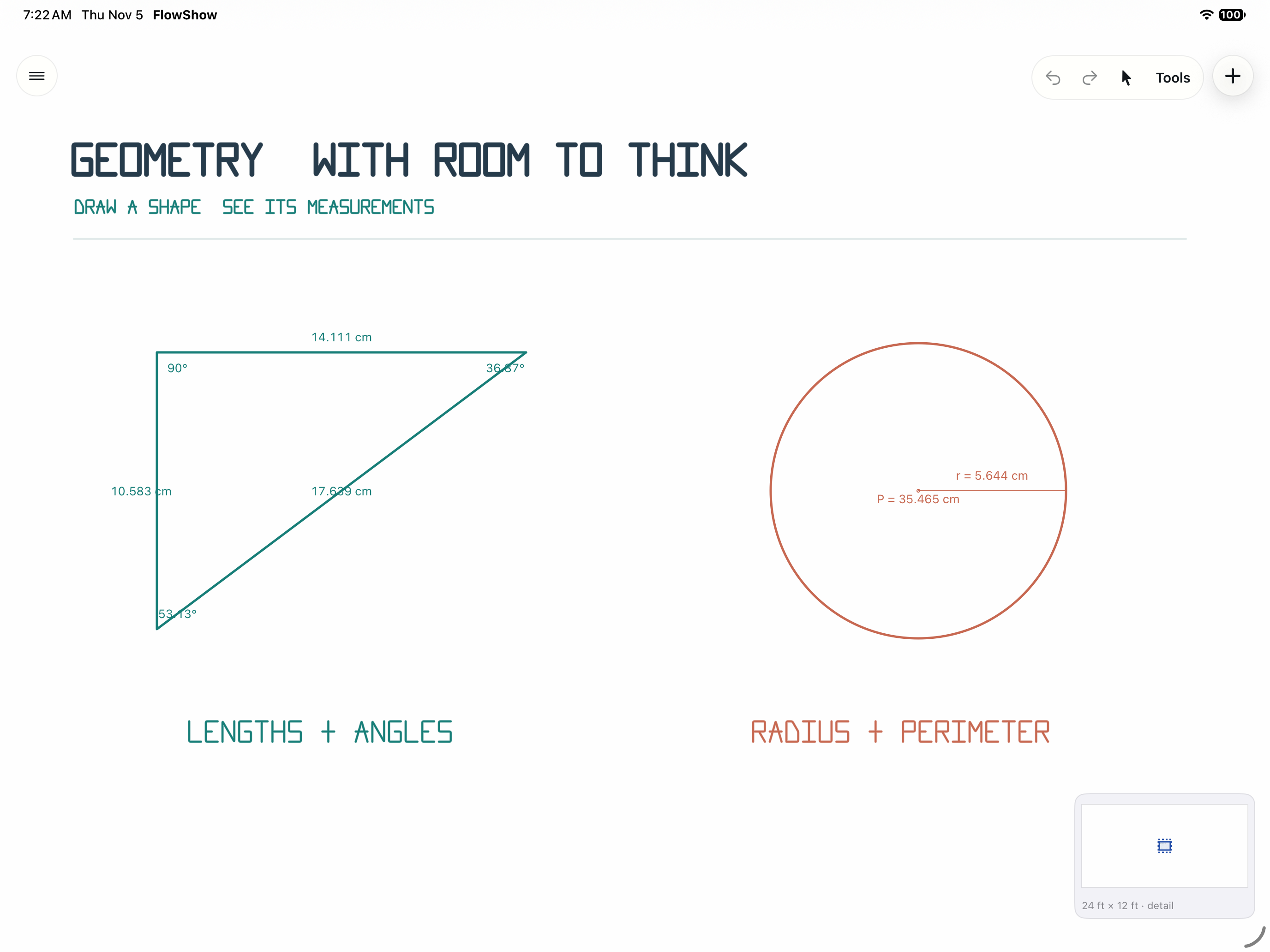
The minimap shows artwork, the board boundary and the viewport. It is a navigation aid rather than a second editing canvas. Use its visible work to recognize a region and its viewport outline to understand how close you are zoomed in.
- Look for the region containing the sketch or reference you need.
- Tap or drag in the minimap to navigate toward that region.
- Return to the board and adjust the zoom for writing or selection.
- Use the overview again when moving between distant parts of a project.
The minimap reflects saved native ink, including erasure masks. It is a reduced overview, so a thin stroke can be less obvious there than on the main board. A small preview should not be used to judge the exact appearance of an exported drawing.
Grid and dot spacing
Grid and dot pitch remains the value you chose. When the marks would be too dense to display meaningfully, FlowShow can omit them rather than quietly substitute a different physical spacing. Zoom in before assuming that a grid setting was lost.
This matters for technical work: a sparse-looking overview does not mean that an object changed size. Use numerical dimensions and measurement labels when a value needs to be read precisely.
Which surface receives the gesture?
| Where you interact | What changes |
|---|---|
| Board with the navigation gesture | The whiteboard view |
| A movable selected object | That object's position |
| Calculator title bar | The calculator panel position |
| Inside a calculator graph | The graph window |
| Inside an editable document card | The document's content or its scroll position |
| Minimap | The visible board region |
When a pane covers your intended gesture area, minimize or move it rather than repeatedly dragging through the same interactive content. The calculator retains its current page when minimized and restored.
Returning after rotation or reopening
The stored world center helps keep orientation changes and reopening aligned with your work. The viewport can show a different width or height after rotation, but the document remains in the same coordinate system.
If the view seems wrong, first use the whole-board view or minimap. Check whether the project is a preserved legacy board with a larger extent. Do not resize all the objects to compensate for a navigation problem.
When a tool handle is out of reach
Selection controls are positioned to avoid rotation, resize and protractor-arm handles where space permits. A handle outside the current viewport still requires navigation. Move the view or zoom out until the entire object and its handles fit comfortably.
For more precise positioning, enter numerical values in the object's properties instead of trying to land a gesture on a crowded corner. See precision and snapping.