 FlowShow
's board drawing uses native PencilKit ink. Apple Pencil is the drawing input; fingers handle object interaction and board navigation. Finger and Pencil input are both available for supported controls such as calculator keys and document fields.
Choose a drawing medium
The drawing tools include Pen, Pencil, Marker, Crayon, Paint and Highlighter. Choose the medium for the mark you want rather than treating each as a different storage format. All belong to the board's native drawing.
Pen is useful for written notes and firm diagram lines. Pencil and Crayon provide a different texture for studies and rough planning. Marker, Paint and Highlighter support bolder or broader marks. Try a few strokes beside each other on a test board before settling on a medium for a large illustration.
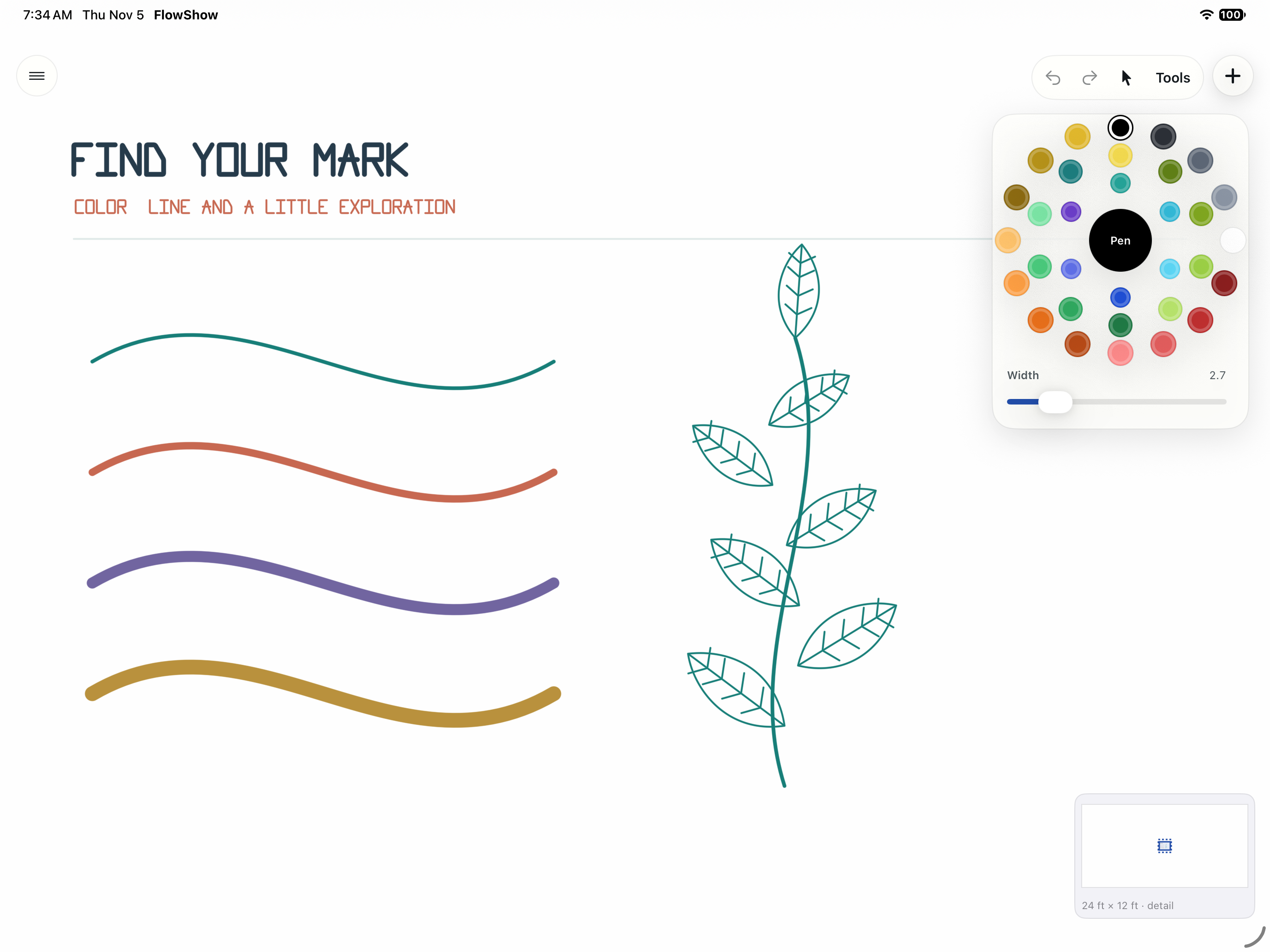
Set color and width
Use the drawing palette to choose a color and line width, then make a test stroke at the zoom level where you expect to work. A very fine line can be clear in a close view and difficult to see in an overview or reduced-size export.
Keep the distinction between drawing style and geometry properties. A freehand stroke belongs to the ink layer. A shape has its own stroke, fill and numerical dimensions. Changing an object's properties does not recolor every nearby Pencil stroke.
Apple Pencil Pro squeeze
On compatible hardware, the Pencil Pro squeeze palette provides access to drawing controls without a trip across the board. It is a hardware-specific shortcut, not a requirement to use the rest of the workspace.
The precise feel of Pencil input depends on the supported Pencil, iPad and operating system. This guide does not promise identical pressure, tilt or gesture behavior on every model. Check the App Store's compatibility information for your device.
Erase ink
Use the native bitmap eraser to remove part of an ink mark. Bitmap erasing affects the drawing; it is not the same operation as deleting a shape, image or document card. If the thing you are trying to remove is an object, select that object and use its object controls.
After erasing, the minimap should reflect the changed drawing. At a wide zoom, the preview can make very small remaining marks difficult to distinguish. Inspect the main board before making repeated edits based only on the overview.
Draw around references
A reference image can remain on the board while you write or draw around it. Native ink sits above the object layers. Ordering objects changes their relationship to other objects; it does not create named drawing layers or let you interleave every Pencil stroke with every imported item.
For a drawing exercise, import the reference, resize and pin or lock its position as appropriate, then work in a neighboring area. Keeping some open space between reference and draft makes both easier to select later.
Keep gestures deliberate
- Use Pencil contact for a new mark.
- Use two fingers when you intend to navigate the board.
- Select an object before using its movement, rotation or size controls.
- Move or minimize an interactive pane when it covers the place you intend to draw.
- Use Undo for a mistaken action before making unrelated edits that obscure what happened.
A browser, graph or document editor is an interactive surface. A Pencil tap inside it may operate a control instead of drawing. Put the stroke on the exposed board when you want board ink.
Ink in exports
PNG and SVG exports represent the board visually. The editable JSON format retains the native document records needed for continued work. A visual export is not a replacement for an editable backup.
For artwork with fine detail, review the exported file at its final display or print size. Full-board output is bounded, so a 24-foot-wide composition does not imply unlimited raster resolution. See saving and exporting before preparing a large deliverable.