 FlowShow
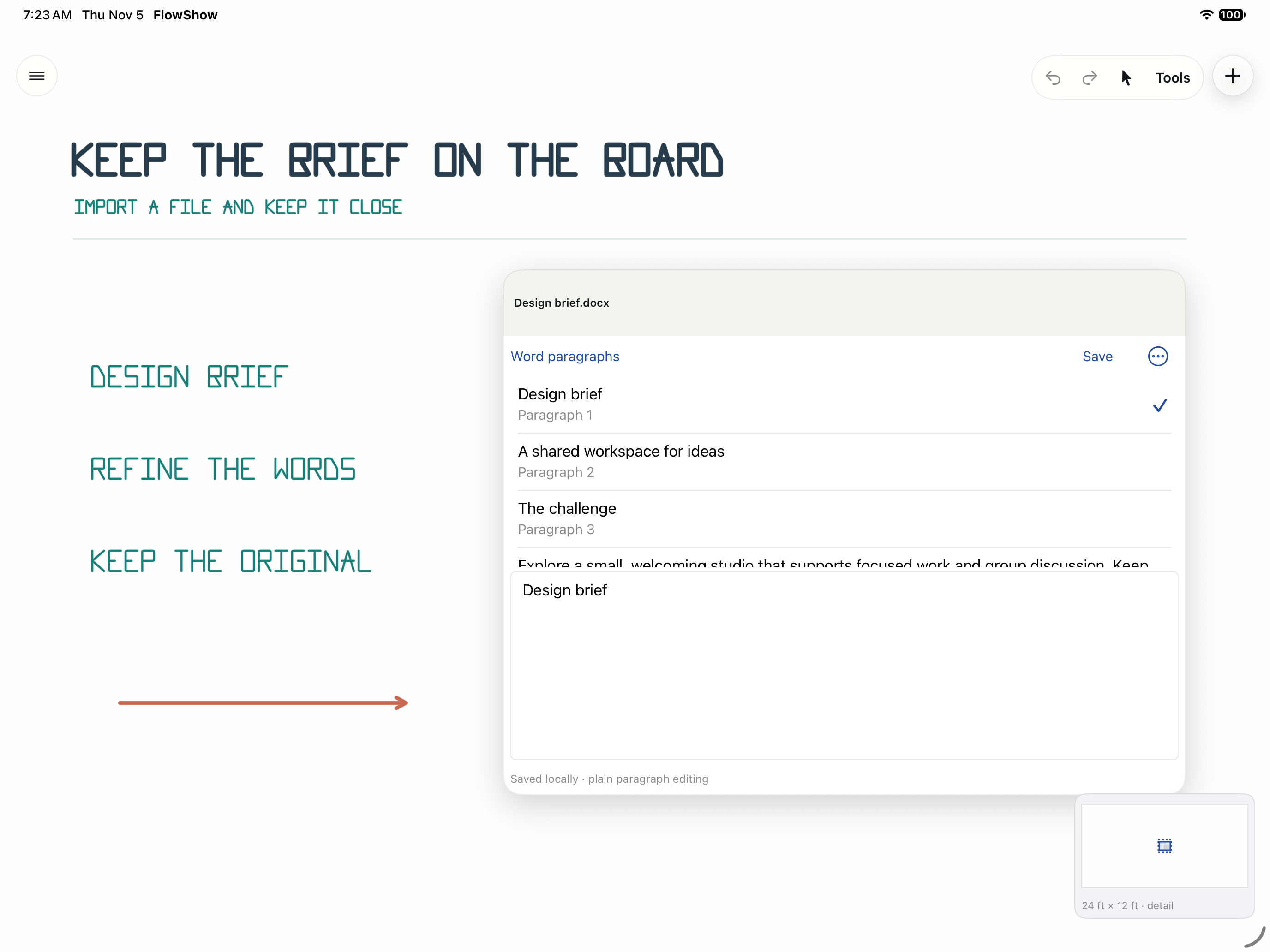
A design brief is easier to use when it stays beside the design. FlowShow opens supported DOCX documents in native file cards on its iPad whiteboard, with offline editing for plain top-level paragraphs. Revise the wording, keep the sketch in view and save a new copy while retaining the original.
Use a plain brief as the starting point
Import the DOCX file and inspect its structure before changing it. A short brief made from ordinary paragraphs is a straightforward fit: a project purpose, a description of the audience, a few requirements and a note about the next review.
Keep the card beside the sketch or storyboard it describes. Pin its frame position so the content remains usable without the whole pane moving. The board remains a separate place for handwritten questions, visual alternatives and reference images.
Revise a requirement beside the draft
Select a supported paragraph, edit its text or insert a plain paragraph, and use Save. For example, a sentence describing a backpack can change from “Include storage for everyday items” to a more specific requirement about a notebook pocket and a bottle sleeve.
Make that edit in a practice copy, then write a note beside the sketch showing which part of the drawing addresses it. The DOCX contains the requirement; the board contains the visual response. Reopen the file card after saving and confirm that the revised paragraph is present.
This is a suggested workflow using the supported editor, not a claim that FlowShow automatically links a requirement to a shape.
Know which parts are editable
The supported editing surface is plain top-level paragraphs. Complex structures remain read-only. Unknown package parts, runs, fields and tables are preserved rather than offered as fully editable substitutes. A file with complex layout can therefore open without every visible element becoming editable.
FlowShow does not offer the complete Word authoring environment. Do not plan a workflow around editing embedded tables, advanced layout or other unsupported structures. Legacy DOC files remain preview-only. Use the document compatibility reference before choosing which file to bring to the board.
The board and the document stay separate
Drawing beside or over a DOCX pane does not insert the Pencil strokes into the Word file. Likewise, rearranging the document card changes the board layout, not the paragraphs' structure inside the DOCX package.
That separation is useful during review. Keep alternative wording in the document, visual comments on the board and source images nearby. When you share, choose the format that contains the part the recipient actually needs.
| What the recipient needs | What to share |
|---|---|
| The unchanged brief | The original imported DOCX |
| Your saved paragraph edits | The latest edited DOCX copy |
| The visual discussion around it | A PNG or SVG of the board |
| The continuing FlowShow project | An editable JSON board export |
Save without replacing the original
A successful document save creates a new immutable asset version and commits the board reference. Failed saves retain the edit buffer. Complete the save before sharing an edited copy, then inspect the exported document in its destination application when formatting or preserved structures matter.
The DOCX guide provides the editing sequence. The product-sketch example shows a board where written requirements and visual alternatives can live together.