 FlowShow
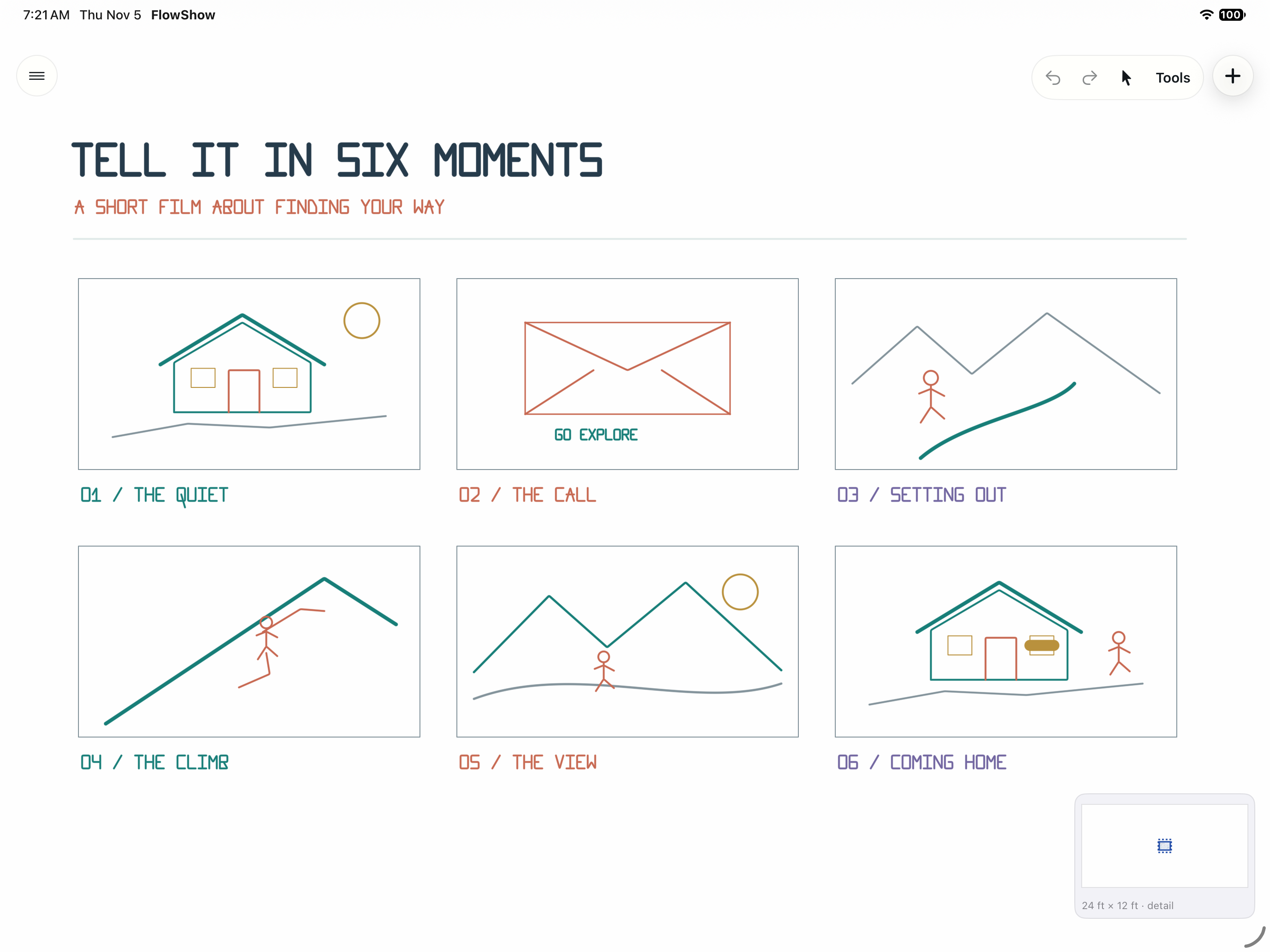
The example tells a small journey in six frames: The quiet, The call, Setting out, The climb, The view and Coming home. A house, a message, a figure and a landscape do the work. The drawings are simple enough that the sequence remains the main event.
Write the six beats first
Choose a beginning, a change and an ending. Write six short labels that connect them. A storyboard is easier to revise when each frame has a clear purpose before you add detail.
For this example, the message in the second frame changes the quiet first scene into a journey. The climb creates effort; the view supplies its reward; coming home closes the sequence. These are observations about the actual example, not an automated storytelling feature.
Arrange the frames
Insert six rectangular objects and arrange them as two rows of three. Duplicate a frame to keep its proportions consistent, then use alignment to establish a clear reading order. Leave room below each frame for its number and action label.
Do most of the layout work before detailed drawing. The frame objects and native Pencil ink are separate. Grouping rectangles does not automatically make all the freehand marks inside them members of the group.
Draw only what the moment needs
Use Apple Pencil to establish the subject and action with a small number of marks. Reuse visual elements, such as the house or the figure, so the sequence is recognizable. Color can draw attention to the path or another important change without filling every surface.
A drawing medium and width that look elegant close up may be too faint at overview scale. Check the entire six-frame arrangement as you work. The Pencil guide explains the available media and erasing behavior.
Add the information the drawing cannot carry
Keep a short action label below each frame. Add timing or sound notes in a separate band when the next production stage needs them. FlowShow does not play the frames as a video, attach an audio track or supply automatic animation timing.
A reference image can sit alongside the board. Use it to study an object or setting, but keep it outside the frame sequence unless it is intentionally part of the composition. The image guide covers import, crop, flip and opacity.
Review at two scales
Zoom out and read the story from the first frame to the last. Check that a viewer can understand what changed without needing an explanation for every panel. Then zoom into the frames whose action is ambiguous.
The minimap helps you return to the active region. Leave enough spacing that you can add a note or replace a scene without squeezing the whole board into a dense sheet.
Share the sequence
Export PNG or SVG for a visual review. Inspect the resulting text and drawing at the recipient's likely viewing size. Use editable JSON when the board needs continued work in FlowShow, and keep the original project while reviewing changes.
A useful handoff contains the sequence and the decisions that matter, not every unused sketch. Keep explorations elsewhere on the board or in a separate project when they make the final review harder to read.